
Users
The Users section (MANAGE → Users menu) is a list of everyone who has access to your PWA Hub dashboard. This is where you add new people, assign them roles, decide who is allowed to sign in and who isn't yet, and, when needed, issue a key to the public API. In essence, it's the place from which you control who can do what inside the system.
The MANAGE group is shown in the menu only to administrators, and only they manage users. Team leads and customers don't see this section: they change their own name and password on the Profile page.
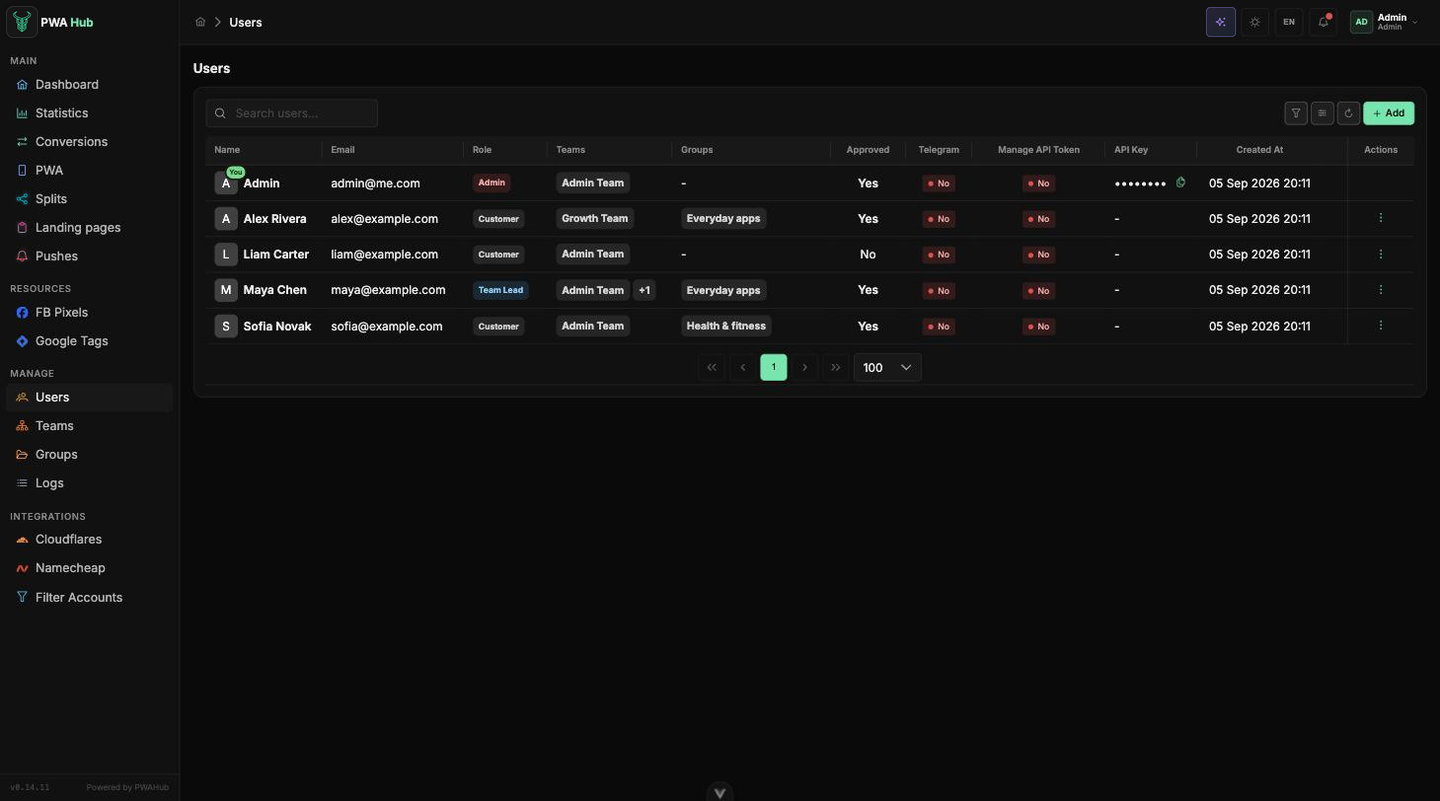
User list
The page is laid out in a familiar way: a search field at the top, the filter and column buttons, a refresh and the green Add button on the right, and below them a table with all users and page navigation (100 rows per page). Filters and column settings work as in every list in the panel, see the "Interface" section. For each person, the table shows:
- ID - the user's internal number.
- Name - the name they're listed under in the dashboard.
- Email - their email, which also serves as the sign-in login.
- Role - the role: admin, team_lead, or customer (more on these below).
- Teams - the teams the user is attached to.
- Groups - the access groups shared with the user (see "Access groups").
- Approved - whether access is approved (whether the person can sign in).
- Telegram - whether Telegram login is linked to the account (Yes/No).
- Manage API Token - whether this user is allowed a key to the public API (only administrators see this column).
- API Key - the key itself, if one has been issued (also administrators only).
- Created At - the creation date.
- Actions - the "⋮" menu with actions for the user.
Quick search
If you have a lot of users, use the search field at the top - it filters the list, so you won't have to page through manually.
Roles
The role determines what a person sees and what they're allowed to do inside PWA Hub:
- admin - full access to the entire dashboard: users, teams, integrations, settings. Give this role only to those you fully trust to administer the system.
- team_lead - traffic work within their own teams: the PWAs, splits, landing pages, pushes, pixels and tags of everyone in those teams. A team lead does not manage people, teams, integrations or settings.
- customer - a buyer inside a team. They see and edit only what they created themselves, plus the resources shared with them through access groups; the Users and Teams sections are closed to them.
A role works together with teams: applications, splits, and landing pages belong to a team, so a user's access to data is determined by which teams they are part of. There is more on this in the "Teams" section.
You don't edit yourself here
Everyone changes their own name and password on the Profile page (the menu in the top-right corner → Profile). The Users table is an administrator's tool for managing others.
Adding a user
Click Add - the New User window will open.
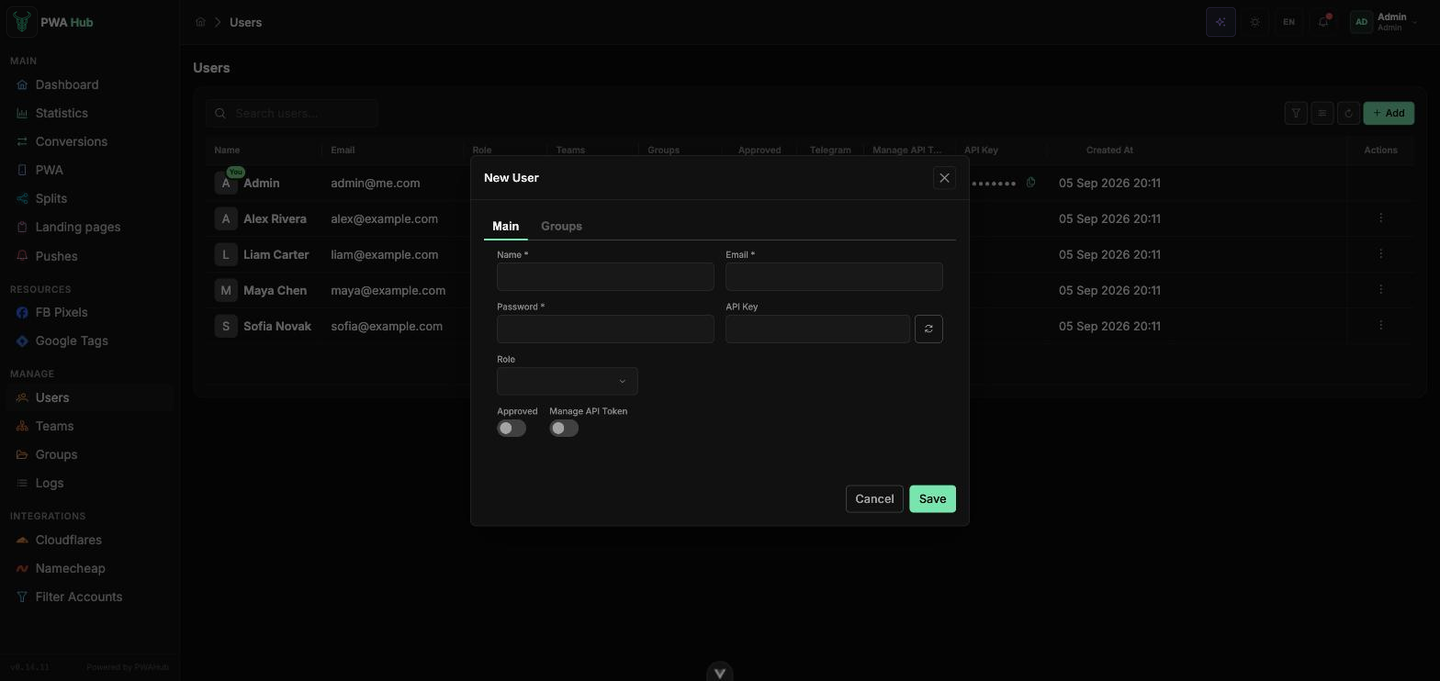
Fill in the fields:
- Name - the user's name.
- Email - the email, which is also the login.
- Password - the sign-in password.
- API Key - the key to the public API. There's a regenerate button next to it - clicking it makes the system create a new key value.
- Role - pick a role from the dropdown: admin, team_lead, or customer.
- Team / Teams - this field appears after you pick a role: for customer you choose a single team (Team), for team_lead one or several (Teams). For these roles a team is required. For the admin role the field isn't shown - admins aren't assigned teams, they see everything anyway.
- Approved - a toggle for whether to allow the user to sign in (see below).
- Manage API Token - a toggle for whether to issue the user a key to the public API (see below).
The Groups tab
After the first save the user's card gets a Groups tab - that is where they are granted access groups to apps, landings, pixels and tags of other teams. See the "Access groups" section for details. Granted groups are shown in the list in the Groups column.
At the bottom of the window are the Cancel button (close without saving) and Save
About the API key
The key is only needed if the user will access PWA Hub programmatically - from scripts or third-party services via the public API. For regular work through the interface, it isn't required. For more on how it works and how to reissue it, see the "Profile" section.
(create the user).
Approved - sign-in access
The Approved toggle settles a simple question: can the user sign in to the dashboard.
- On - access is open, the person can log in.
- Off - sign-in is closed, even if the login and password are correct.
This is especially important for those who register on their own. Users who registered themselves (for example, via Telegram) appear in the list as customer and arrive unapproved. Until an administrator turns on Approved for them, they won't be able to sign in.
Approval is your "checkpoint"
Keep new self-registrations under control: check who has registered, and turn on Approved only for those you're actually expecting. That way random people won't end up in the dashboard.
Limit on the number of approved users
The number of approved users is capped by your license. Once the limit is reached, you won't be able to create a user with Approved turned on or approve an already-registered one - the dashboard returns a Limit reached: max_users error. Unapproved users don't count toward the limit.
Manage API Token - access to the public API
The Manage API Token toggle determines whether this user is allowed to have a key to the public API. Turn it on only for those who genuinely need programmatic access to PWA Hub - others have no use for it. The key itself and working with it are described in detail in the "Profile" section.
Administrators need the toggle too. You cannot turn it on for yourself - your own account is not edited in this section, so another administrator turns it on for you.
The key is access to the system
Hand it out selectively rather than to everyone. For how to handle the key value securely, see the "Profile" section.
Editing and deleting
All management of a specific user is tucked into the "⋮" menu in the Actions column:
- Edit - opens the same window with fields as when adding. Here you change the name, email, role and teams, toggle Approved and Manage API Token, set a new password if needed, regenerate the API Key and grant access groups on the Groups tab.
- Unlink Telegram - this item appears if the user has Telegram linked. It disconnects Telegram login (with a confirmation) - after that the person signs in with email and password only. Comes in handy when access to the Telegram account is lost or in doubt.
- Delete - removes the user from the system. The action asks for confirmation.
Unlinking Telegram requires a password
If Telegram is the user's only way to sign in (they have no password), unlinking won't go through: first set a password for the person via Edit, otherwise they'd lose access entirely.
If a user forgot their password
There's no email delivery in PWA Hub - passwords are reset by an administrator. When a user clicks Forgot password? on the sign-in page, all administrators get a Password reset requested notification with a link to that person's record: all that's left is to open Edit, set a new password, and pass it on. For more on this notification, see the "Notifications" section.
Be careful with the admin role
Before changing the role of or deleting someone with the admin role, make sure at least one administrator with full access will remain in the system. Otherwise there will be no one left to manage the dashboard.