
Metrics: pixels & tags
Ad networks want to know what happens after the click: did the person install the app, sign up, make a deposit. These are the events Facebook and Google optimise delivery on, so a campaign without them is flying blind. In PWA Hub two kinds of resources take care of passing events - FB Pixels and Google Tags. You create them once per team and then attach them to any number of apps on the Metrics tab of the PWA form.
The resource is shared, the events belong to each PWA
A pixel or a tag holds the ad-network account data: identifier, token, conversion labels. They are stored separately and reused. Which events to send is set per app on the Metrics tab.
Where pixels and tags live
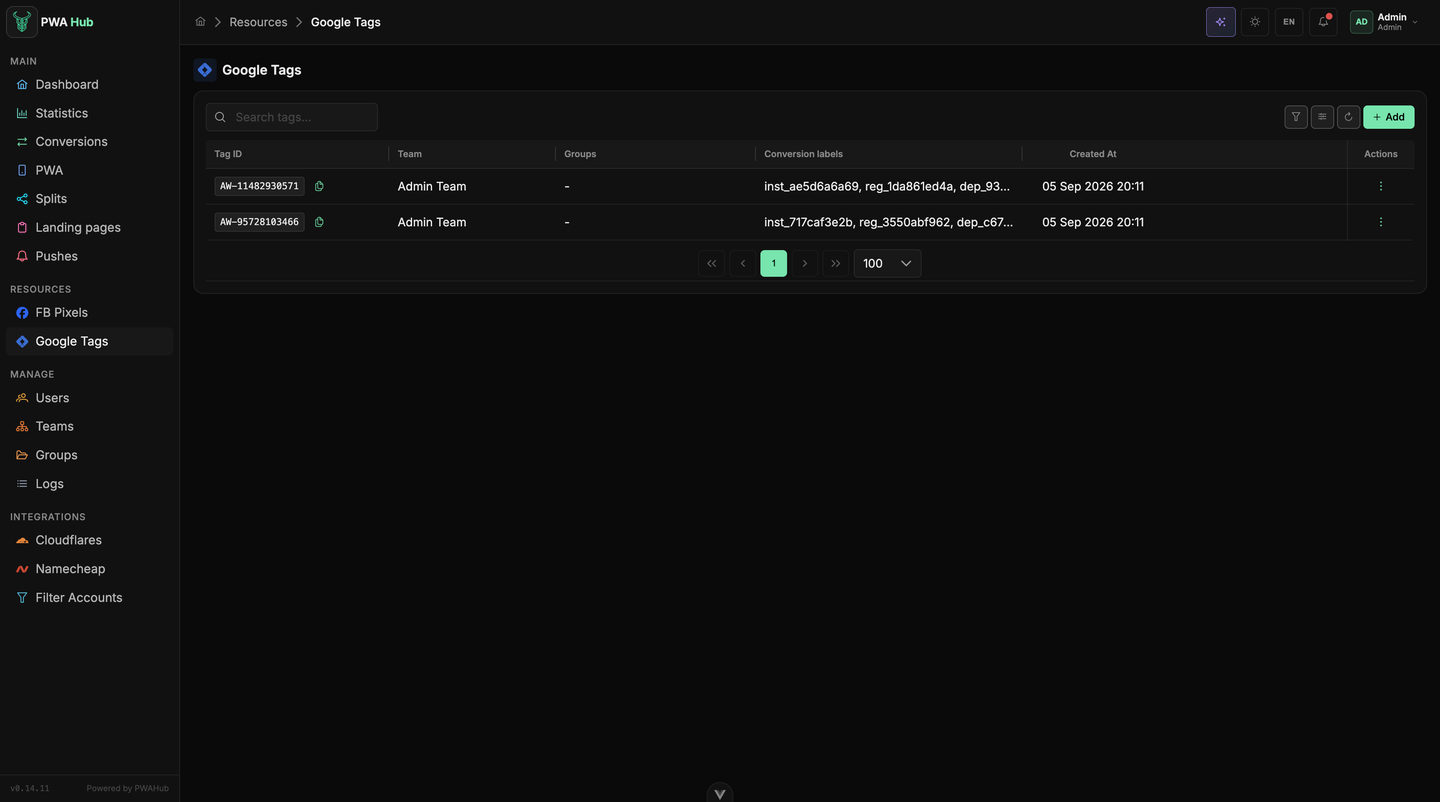
Both lists sit in the RESOURCES menu group: FB Pixels and Google Tags. The sections are open to every role, but each sees their own: an administrator - all resources, a team lead - the resources of their teams, a customer - only what they created themselves plus what was shared with them through access groups (see the "Access groups" section).
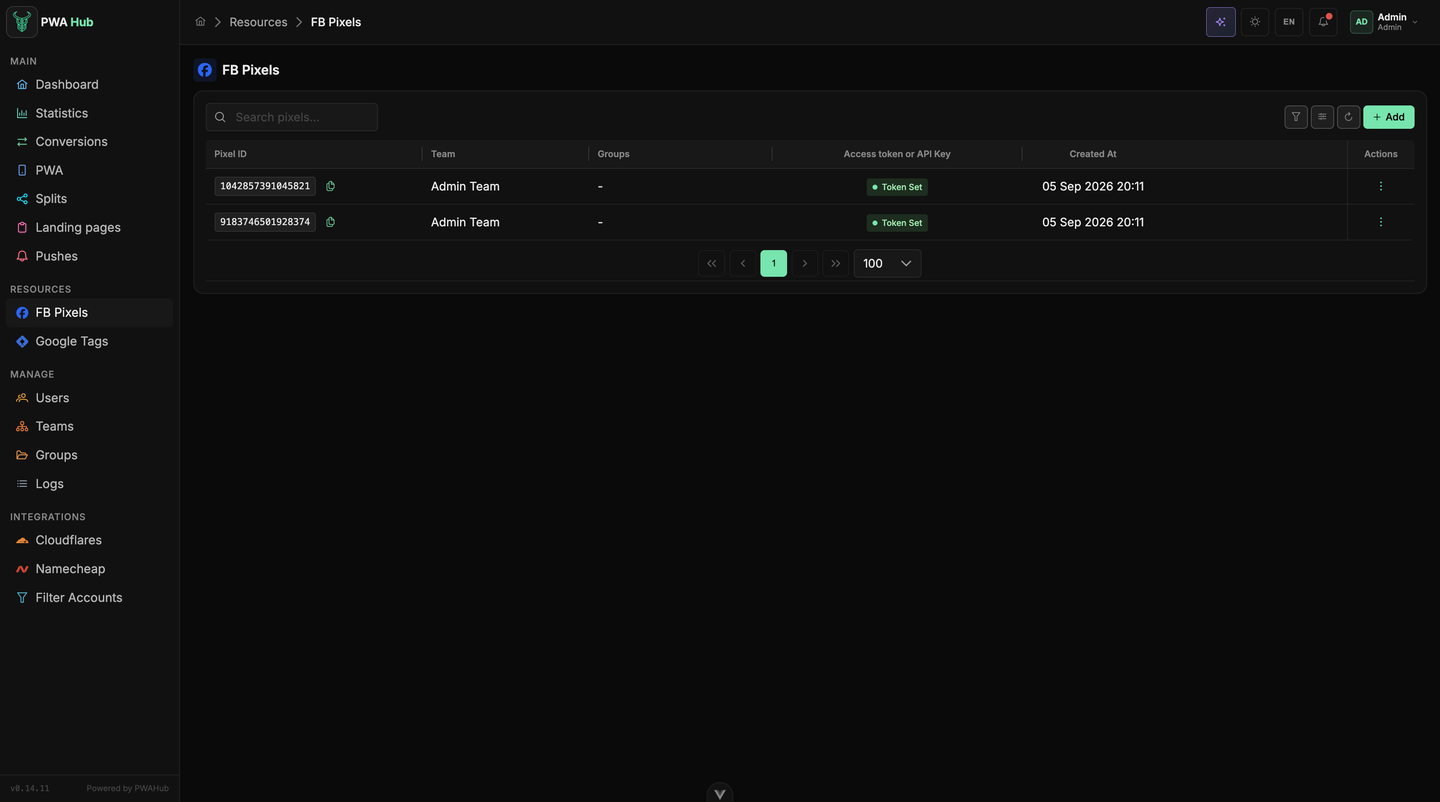
The table shows which team owns the resource, whether it belongs to groups, how many apps use it (PWAs) and whether a token is set (Token Set). The Archived toggle reveals archived resources; the search looks through names and identifiers.
Facebook pixel
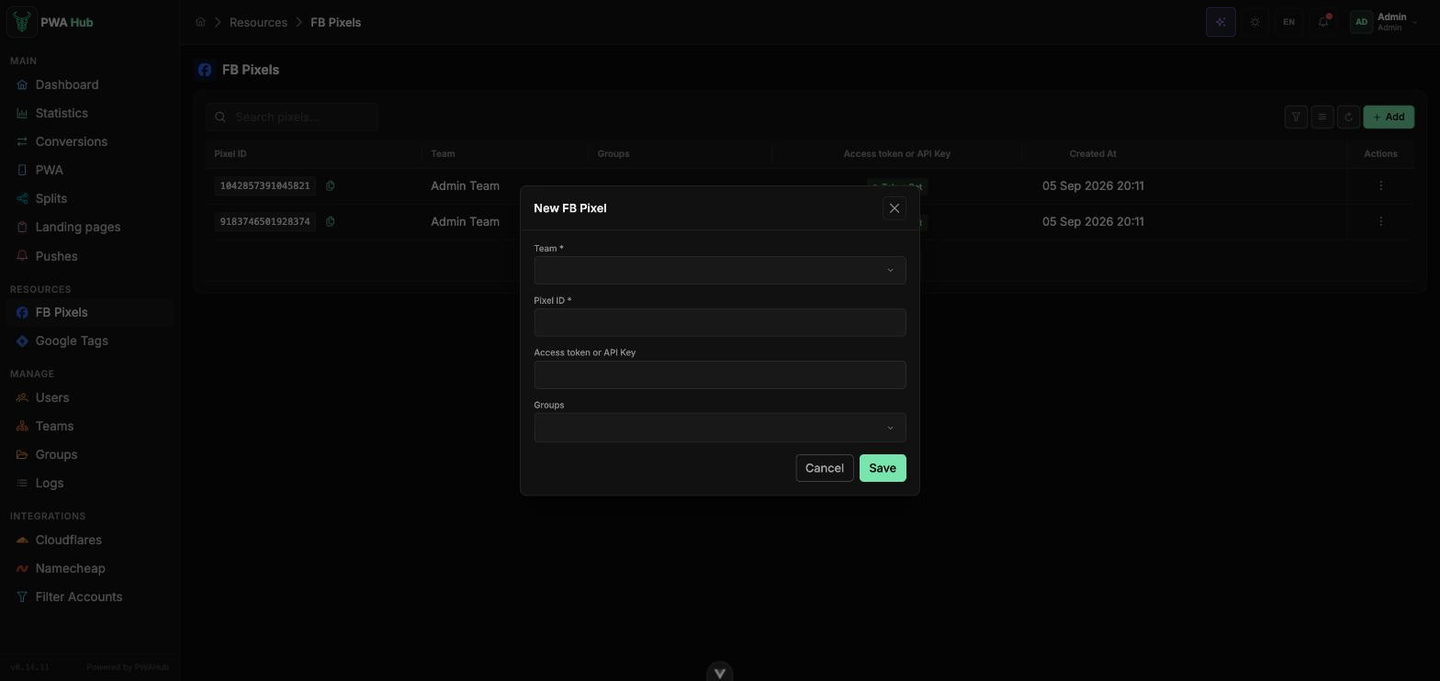
Click Add - the New FB Pixel window opens:
- Name - a readable name to tell pixels apart in lists (by ad account, for example).
- Team - the owning team. The pixel can only be attached to PWAs of that team.
- Pixel ID or Track ID - the pixel identifier from Events Manager.
- Access token or API Key - the Conversions API access token. It is what lets registrations and deposits reach Facebook from the server (see below). Without it only the browser part of the pixel works on the storefront.
- Groups - access groups the pixel goes into.
The token is visible to everyone who can see the pixel
The token is an ordinary editable field: it comes back into the form, and anyone with access to the resource will see it. Don't share a pixel through groups with people you wouldn't trust with your ad account.
Google Ads tag
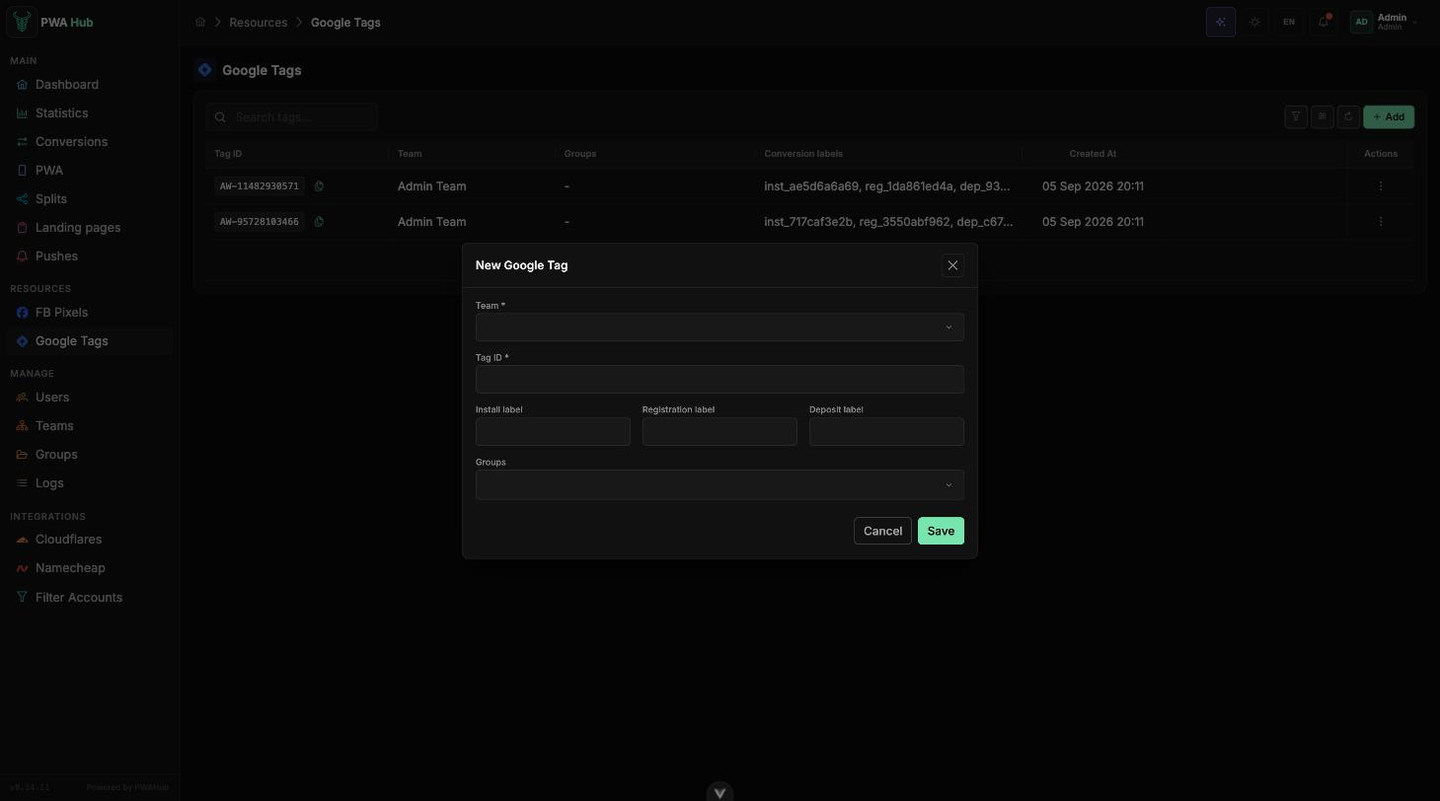
The Google Tags section works the same way. The New Google Tag window asks for:
- Name and Team - as for a pixel.
- Tag ID - the
AW-…tag identifier from Google Ads. - Install label, Registration label, Deposit label - conversion labels for the three events. Labels belong to the tag: an app has no overrides of its own, so the same event goes out with the same label from every PWA using this tag.
- Groups - access groups.
Attaching to an app - the Metrics tab
Open a PWA and switch to the Metrics tab. It has two blocks.
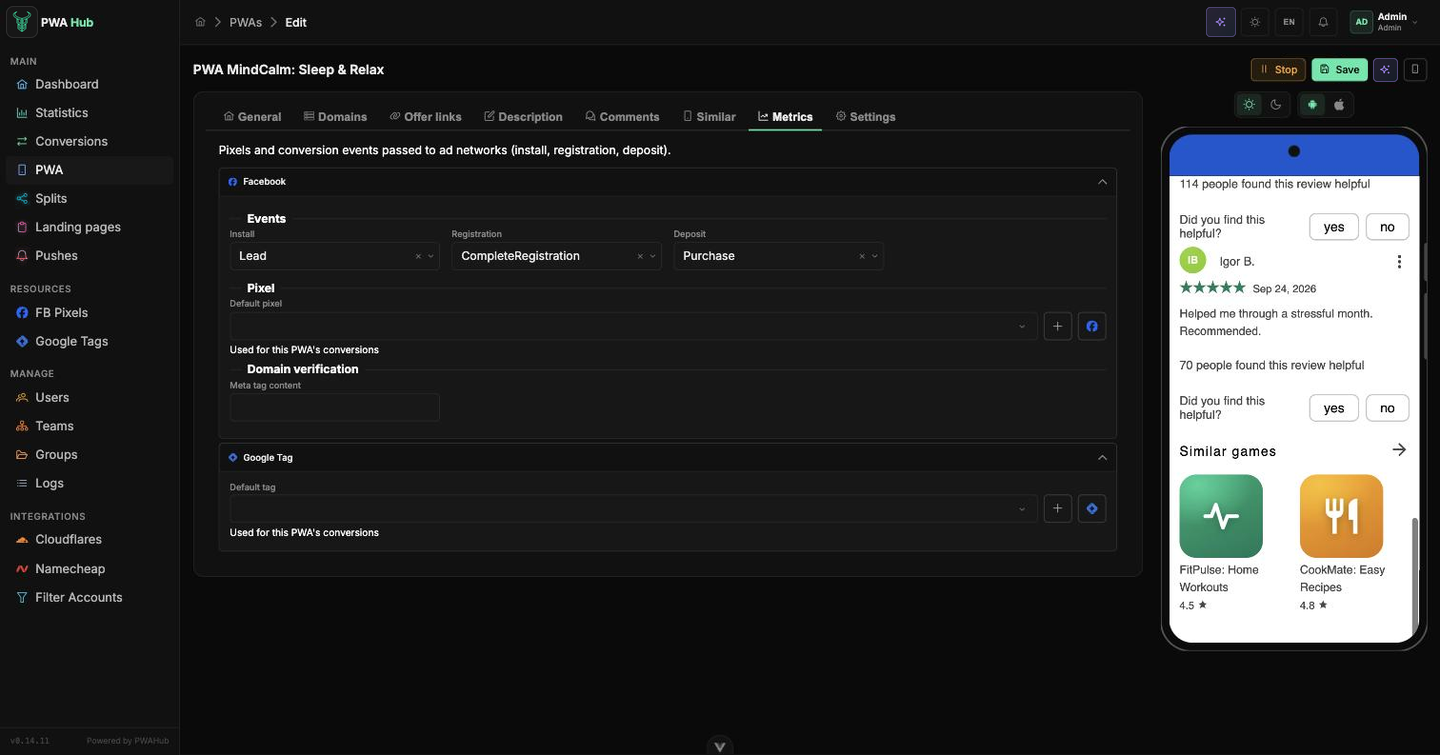
- Events - which standard Facebook event to send each funnel step as: Install, Registration and Deposit. The defaults are Lead, CompleteRegistration and Purchase, but the list has other standard events (Subscribe, StartTrial, AddToCart and so on) - pick the ones the campaign is optimised for. A step without a selected event is simply not sent.
- Default pixel - one of the team's pixels, the one this app's conversions go through (the caption under the field says as much: "Used for this PWA's conversions"). The + button next to it creates a new pixel without leaving the form, and the one beside that leads to the team's resources. If the selected pixel has been archived or deleted, the field honestly says Unavailable.
- Domain verification - the content of the domain verification meta tag from Business Manager. Enter just the
contentvalue; the panel adds the tag to the storefront itself.
Google Tag - the Default tag field, also one per app, with the same + button.
One pixel and one tag per app
A PWA used to take several pixels with one of them marked as the main - now the choice is exactly one, and it is the one that receives the conversions. If you need different pixels for different setups, split them across different apps.
Like everything in the PWA form, the links are saved with Save. When an app is cloned, its pixels and tags are copied along with it.
How events travel
- Install is recorded on the app's storefront: the browser pixel and the Google tag fire on the visitor's device.
- Registered and deposited happen on the offer side, so they reach PWA Hub as a postback from the affiliate network (the postback address is in Settings, the Offer Postback card). The panel then sends them to Facebook itself through the Conversions API - server-side, once a minute, to every pixel of the app that has a token. The event takes its name from the Events block, and the conversion identifier is passed as
event_id, so a resend never double-counts a conversion in Facebook. - Temporary Facebook failures are retried automatically; conversions older than three days are no longer sent.
Check the chain before you scale
The visitor identifier has to reach the offer and come back in the postback - otherwise the panel has nothing to tie the registration to, and it never reaches Facebook. See "Offer links" for the macros in the link and "Settings" for the postback parameters.
Edits, archive and deletion
Changed a token, a label or an identifier - the panel republishes the configuration of every app the resource is attached to and tells you how many PWAs were updated. Nothing needs re-saving by hand.
A resource is not deleted but archived (⋮ → Delete): it disappears from lists, keeps all its links, but stops sending events. Turn on the Archived toggle to find it and bring it back - the links come alive with it.
Pixels and tags can also be managed from scripts - see the API section "Pixels and tags".