
Splits and Flows
A Split is a traffic distributor. It receives visitors on its domains and spreads them across several of your PWAs according to set proportions. Each "split → PWA" pairing is called a Flow, and the share of traffic a flow gets is defined by a number - its Weight.
The idea is simple: the higher a flow's weight relative to the others, the more visitors land on that PWA. A single domain serves several apps at once - and you decide who gets how much traffic.
Open this section from the Splits menu.
Why you need it
Splits cover two common tasks:
- A/B test. Send traffic evenly to two PWAs (weights 1 and 1) and compare their conversion in the dashboard. The winner shows in the numbers, not by guesswork.
- Gradual rollover. Start with weights 9 and 1 - the new PWA gets about 10% of the traffic. Once you confirm everything works, gradually raise its weight until you move the entire flow onto it.
How to read weights
A weight is a proportion, not a percentage. With weights 3 and 1, the first PWA gets about 75% of the traffic and the second 25%. Equal weights split traffic evenly. The absolute numbers don't matter - their ratio does: 2 and 2 works the same as 50 and 50.
A visitor is pinned to one PWA
Each visitor gets an identifier, and the PWA they were sent to is remembered in a cookie for about a year: on return visits they land on the same PWA, even if the weights have changed since. So the weight shares are counted across unique visitors, not per click, and new weights only affect new visitors - when you test it yourself, the domain always opens the same app.
Splits list
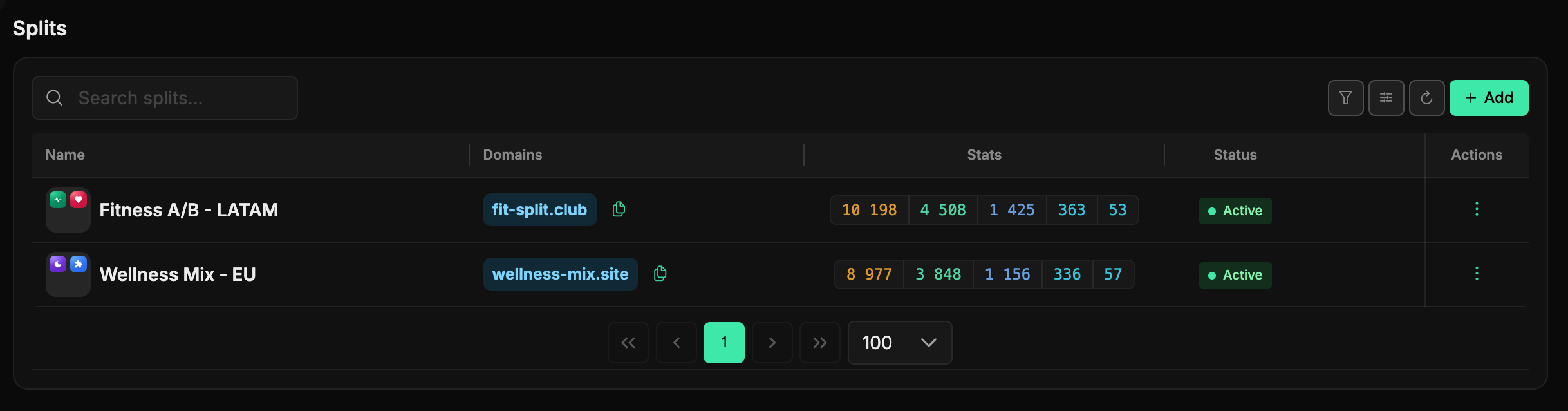
The section's main screen is a table of all your splits. It's a handy way to size up the picture at a glance: which splits are running, how many clicks their domains received, and where the domains lead.
Each row shows the split name with the icons of the apps it divides traffic between, the linked domains (each with a button to copy its address), the Stats column and the status. Stats holds the same five numbers as the PWA list - uniques → installs → regs → deps → repeats, with each one's share of the previous step in the tooltip. The status icon is clickable: pressing it starts or stops the split right away, without going inside.
At the top there's a search, the Add button and a refresh. Behind the funnel button are filters by domain, status, team and the Archived toggle; the button next to it configures the columns. More about these two popovers - in the "Interface" section.
What you can do with a row
The three-dot button on the right opens the actions menu:
- Start / Stop - turns traffic distribution on or off.
- Edit - opens the split form.
- Clone - copies the split's flows with their weights, but not the domains: you'll need to link those to the copy again. The copy is named with a Clone suffix and is created stopped - check the settings and start it manually.
- Archive - removes the split from the list (with confirmation).
Creating a split
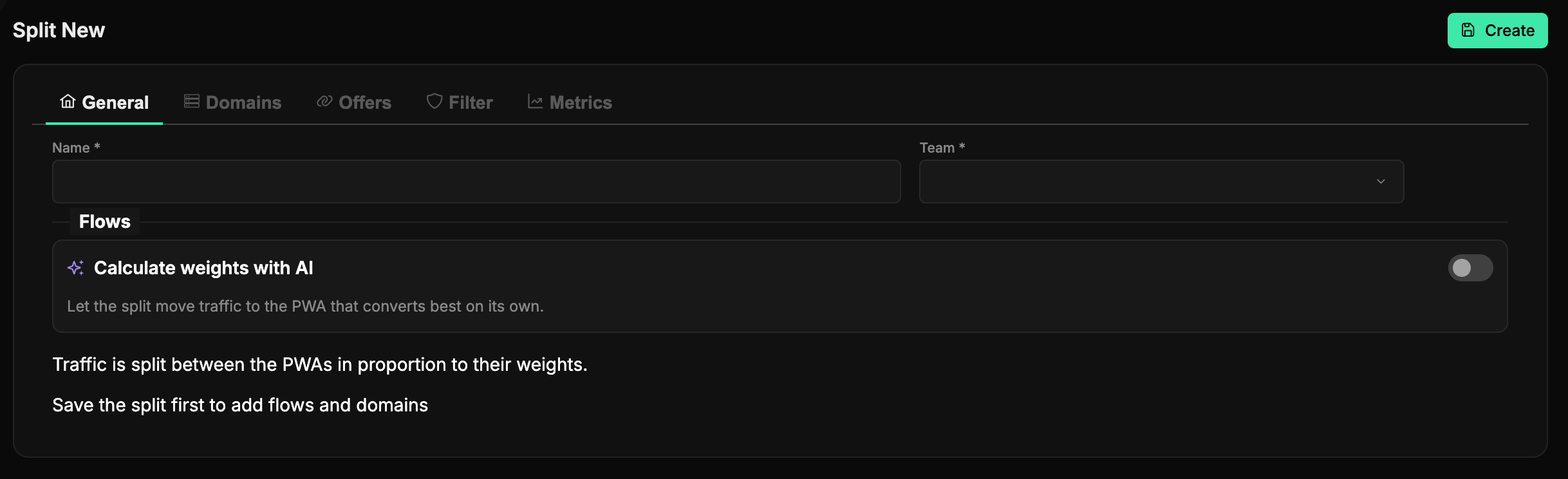
The Add button in the splits list opens the form for a new split. Creation is deliberately split into two stages, and the first is simple - you set only two fields:
- Name - the split's name, which you'll use to recognize it in the list.
- Team - the team that owns the split (and, with it, its domains and flows).
Press Create to create the split.
Save the split first
Domains and flows are added only to an already saved split. Until it's created, the Domains, Offers, Filter and Metrics tabs are locked, and the Flows block shows the hint "Save the split first to add flows and domains". Fill in Name and Team, press Create - the form switches to edit mode and everything unlocks.
Editing a split
Opening a saved split takes you into edit mode. The General tab holds the Flows block, where you connect PWAs with weights; the Domains tab holds the domains you drive traffic to.
Domains - where traffic comes in
On the Domains tab you link the addresses you run ads to. This is exactly the traffic the split will then distribute across the flows.
Domains are connected the same way as for a PWA: the Add new Domain button, a type choice (System, My domain, or Buy new - a purchase through Namecheap attaches the domain straight to the split), an optional subdomain, and an address from the list. The same Toggle DNS / Recreate DNS tools are available in the actions column. All of this is described in detail in the "PWA and Split Domains" section.
Flows, PWAs, and weights
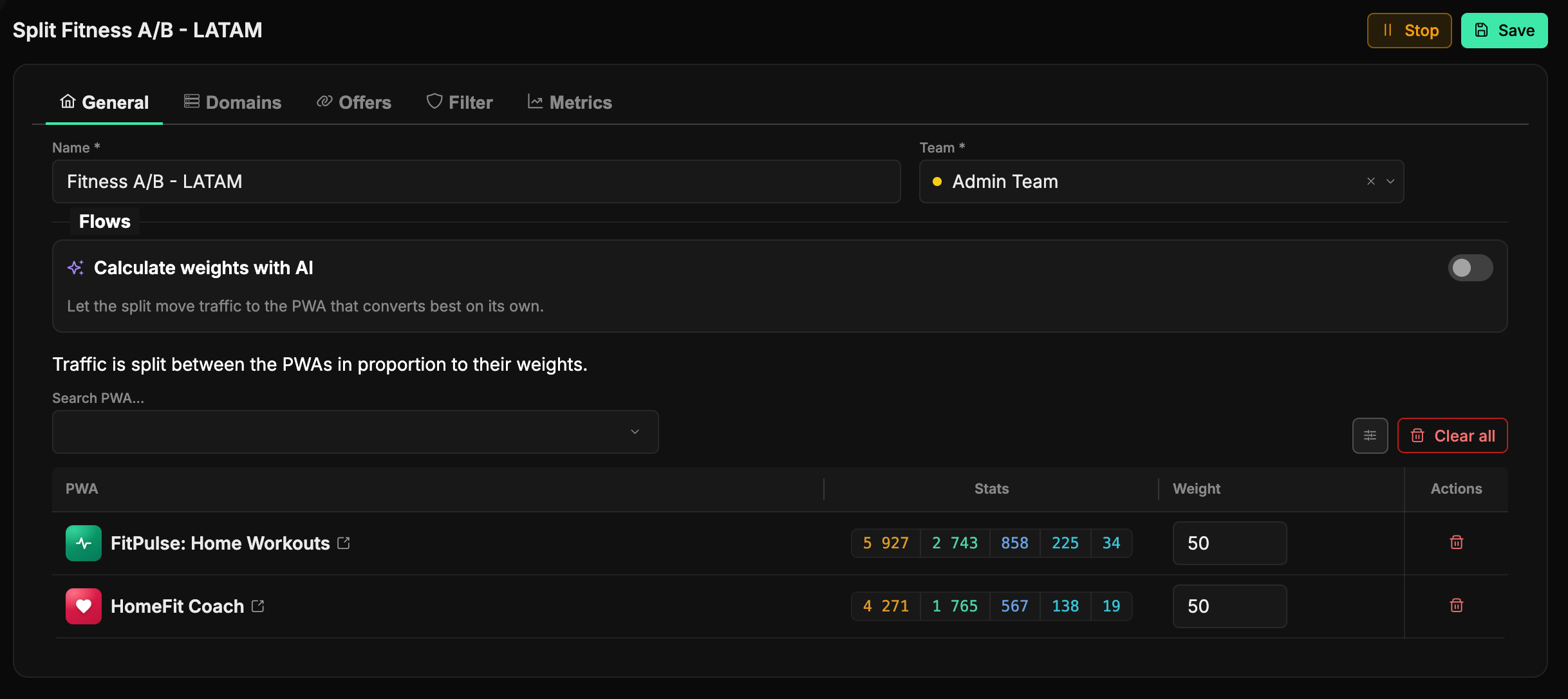
The Flows card is the heart of a split. It's a table of connected PWAs, and each app in it has a Weight column - its weight. Visitors arriving on the split's domains are divided among the linked PWAs in proportion to these weights: in the screenshot example, two PWAs with weights 50 and 50 get equal traffic.
Here's how it's done:
- Start typing a name in the PWA search field and pick an app - it's added to the flows table right away with a weight of 1. Already-added PWAs don't show in the search, so you can't duplicate them.
- Set the desired value in the Weight column - this number defines the traffic share (minimum 0). What matters is not the absolute numbers but their ratio.
- Press Save to apply the weights; the Stop button lets you stop the split without leaving the form.
An unneeded flow is removed with the trash icon in its row, and the Clear all button drops all flows at once.
A flow with weight 0
If you set a flow's weight to 0, it stays in the table but stops receiving traffic. This is a handy way to temporarily "turn off" a PWA from distribution without removing it from the split - and then bring its weight back.
Stopped and archived PWAs drop out of distribution
Only running PWAs take part in distribution: if a flow's app is stopped or archived, its flow temporarily drops out and its share is split among the remaining flows in proportion to their weights. If no working flow is left, the split's domains stop serving traffic.
AI weights
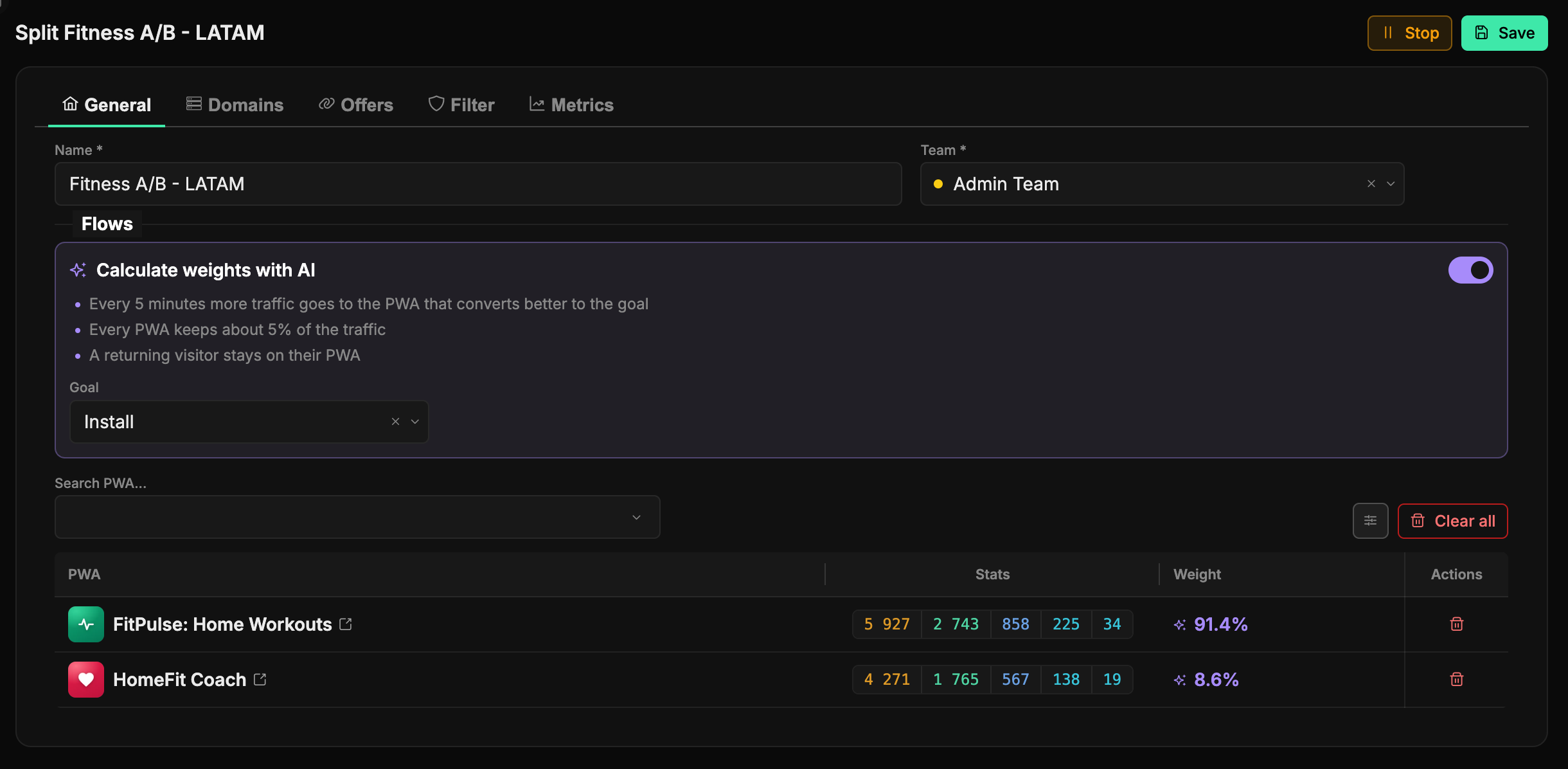
Above the flows table there is a Calculate weights with AI switch. While it is off, traffic is split by the weights you set by hand. Turn it on and pick a goal - Install, Registration or Deposit - and the split itself sends more traffic to the PWA that converts better to that goal.
How it works:
- Every 5 minutes the panel looks at each flow's counters - the same numbers as in the Stats column: unique visits and conversions to the goal. From them it estimates how likely each PWA is to be the best one and splits traffic in that proportion.
- While there is little data, traffic stays close to even - the algorithm is still exploring. Once the difference is clear, almost all traffic goes to the leader. If the leader drops, its share moves to another PWA on its own.
- Every PWA always keeps about 5% of the traffic, so the algorithm keeps checking it.
- Instead of the Weight field the table shows the flow's current share in percent. The Learning badge means some PWA has fewer than 100 unique visits yet, and the shares may still swing a lot.
Your manual weights are kept: turn the switch off and the split goes back to them. A flow with weight 0 does not take part in AI weights either - set the 0 with the switch off, then turn it back on.
Which goal to pick
Deposit is the most honest goal, but deposits are rare and the algorithm learns slowly. Install accumulates fast but only tells you about the page itself. Registration is a sensible middle ground.
Starting and stopping
An active split distributes traffic across the flows; a stopped one doesn't (visitors on its domains go nowhere). You can toggle the status in three ways: by clicking the status icon in the list, via the row's menu item, or with the Start / Stop button in the header of the edit form.
Splits and their flows can also be managed from scripts - see the API sections "Splits" and "Flows".