
Teams
A Team is the working unit of PWA Hub around which everything else is built. It groups users and owns their PWA applications, splits, landing pages, pushes, pixels and tags. Put simply, a team is a "folder" that holds people and their projects. You can find this section in the left-hand menu, under MANAGE → Teams.
The section and everything in it is for administrators only. Team leads and customers neither see nor edit teams: their team membership is set by an administrator in the user's card.
Where teams fit in the overall structure
A team is the top level of how work is organised: Teams → Users. All working objects are tied specifically to a team - PWA applications, splits, and landing pages belong to the team, not to an individual person. That's why any team member works with shared projects rather than personal ones - which is handy when several people work on the same applications.
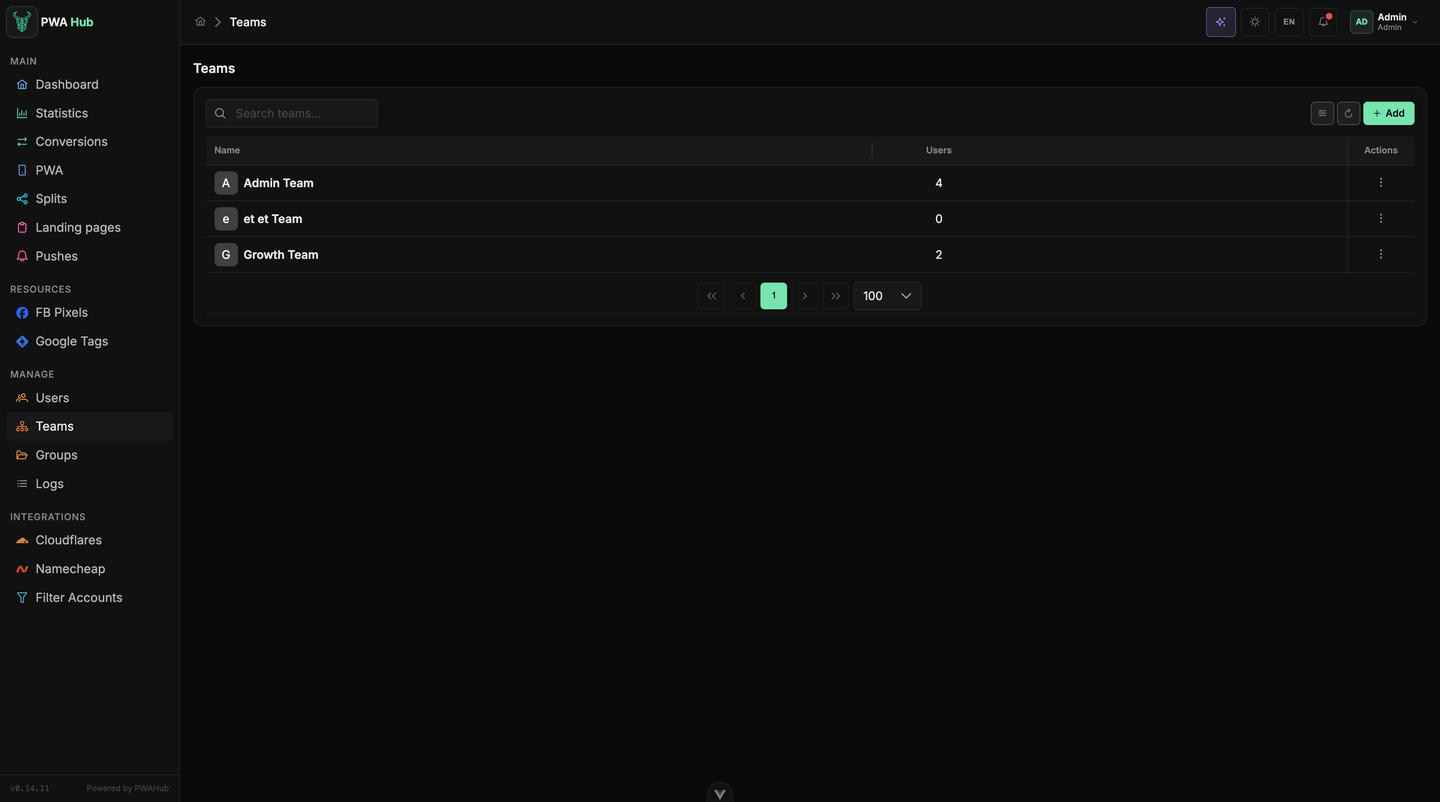
Team list
The page is laid out just like the other lists in the dashboard: a search field at the top, the column settings, a refresh and a green Add button on the right, and a table with all teams. Pagination is at the bottom, with 100 rows per page. There are no filters here - the list is short, so the search is enough.
The table has four columns:
- ID - the team's internal number.
- Name - the team's name.
- Users - how many users belong to the team.
- Actions - the "⋮" menu with actions for the row.
How to create a team
- Click the green Add button in the top-right corner.
- A small window opens with a single Name field - enter the team's name.
- Click Save to create the team, or Cancel to close the window without changes.
The new team appears in the list right away. It has no people or projects yet - it's an empty "folder" that you'll fill in later.
A meaningful name
The team is what you'll see in lists when choosing who owns a PWA or a split. Give it a descriptive name (for example, by project, geo, or client) so you don't get confused later.
Users in a team
The team itself only groups people together - users are added and assigned on the "Users" page. There, each person has a Teams column showing which teams they belong to, and that's where you add them to a team as well. In the team list, the Users column shows the reverse picture - how many people are currently in each team.
Where people come from
Some users are created manually by the administrator, and some register on their own - for example, via Telegram. These come in with the customer role and wait for approval, after which they can be assigned to the right team. See the "Users" section for more on roles and approval.
Editing and deleting
All management of an individual team lives in the Actions column. Click "⋮" next to the row you need and choose an action: edit the team's name or delete it.
Delete with caution
A team owns PWA applications, splits, and landing pages and is linked to users. Before deleting a team, make sure its projects and people are no longer needed or have been moved - otherwise you risk losing the link to your working objects.
A team with active users can't be deleted
If a team still has other approved (Approved) users, deletion won't go through - the system returns a Cannot delete team while it has active users error. First move the members to other teams or turn off their Approved.
What's next
Once a team is created and people have been added to it, you can get to work: connect domains (see "Domains and Cloudflare"), check that your environment is ready (see "Requirements and setup"), and build your first applications (see "PWA applications"). The instance-wide "switches" are in the "Settings" section.