
PWA and Split Domains
A domain is the address at which your application opens. Until at least one domain is attached to a PWA or split, there is simply nowhere for users to open it. The good news: connecting a domain takes just a couple of clicks, and you can attach several at once - for example, to run the same PWA on different addresses and switch them out when one of the addresses "burns out."
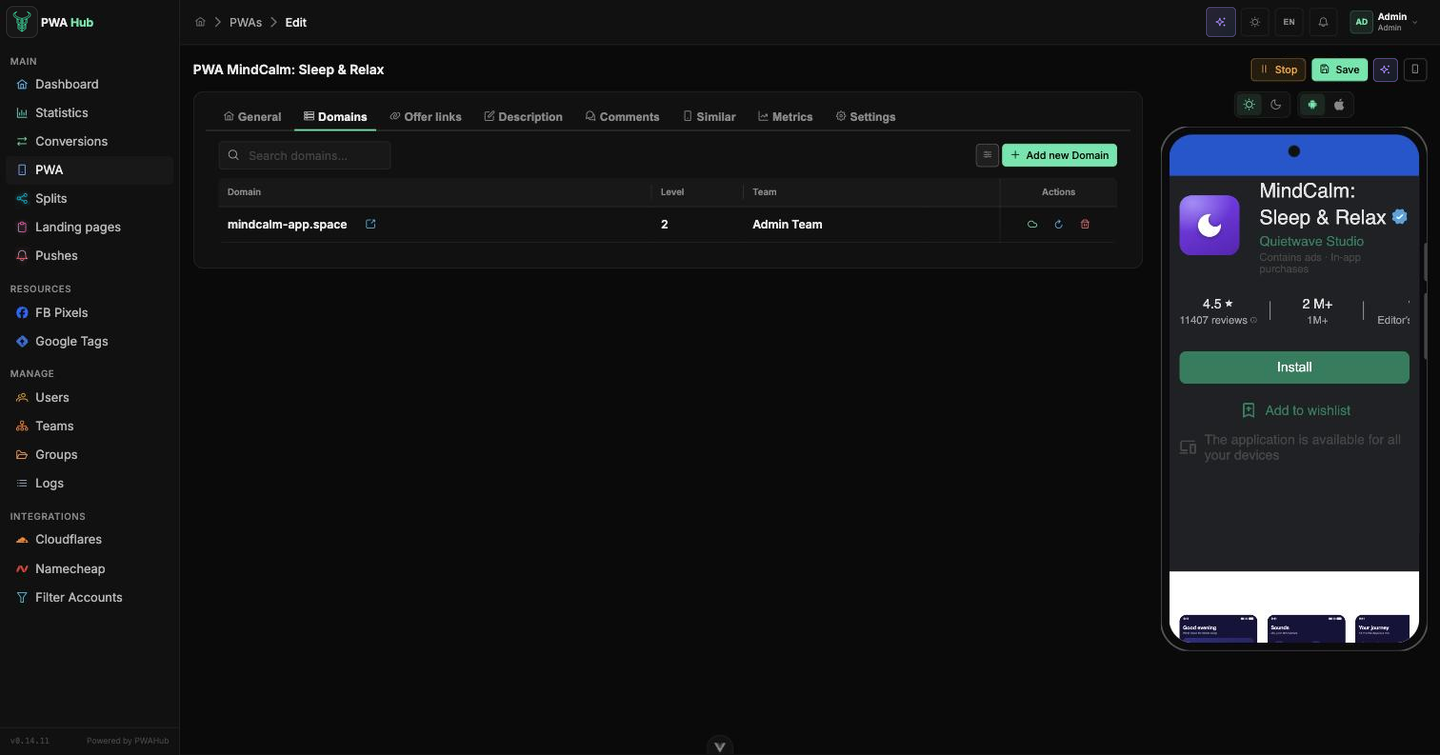
Where to find domains
- For a PWA, domains live on a separate Domains tab inside the application card - as in the screenshot above.
- For a split, domains are gathered in the Domain block on the split editing page, below the general settings.
Save the split first
You can add domains to a split only after it has been created. Until the split is saved, instead of a table you will see the hint "Save the split first to add flows and domains." Click Create - and the domains block will come to life.
System or My domain - which to choose
This is the first thing you specify when adding an address, and in essence the whole choice comes down to one question: take a ready-made address or connect your own.
- System - the platform's shared address pool. They are already prepared and work out of the box: pick a suitable one from the list - and that's it. Nothing to configure, buy, or enter into DNS. Handy when you want to quickly launch a PWA and test the setup in action without spending time on your own domain.
- My domain - your own addresses that are assigned to you. These are the domains you added in the Cloudflare section while setting up PWA Hub. Choose this type when you work with live traffic under your own brand and want full control over the address.
A simple rule
System = "take a ready-made shared address," My domain = "set up your own." Only one thing depends on this choice - which addresses the list shows in the Domain field below.
How to connect a domain
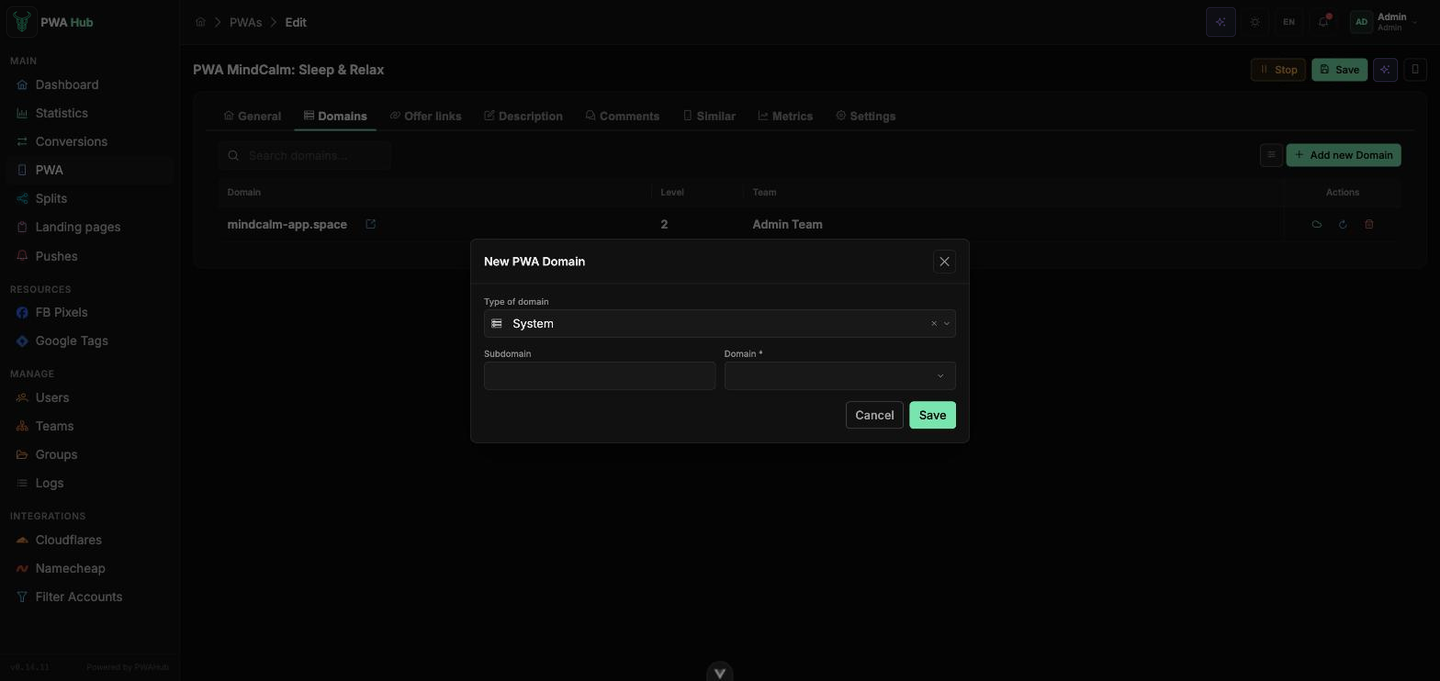
- Click "Add new domain" - the "New PWA domain" window will open.
- In the "Domain type" field, select System or My domain (see the section above).
- If you wish, enter a subdomain - it will be glued to the left, separated by a dot. The subdomain
appand the domainexample.comwill produce the addressapp.example.com. Leave the field empty to use the domain as is. - In the "Domain" field, start typing the name in the "Search domains..." line and select the desired address from the list. It shows only addresses of the selected type.
- Click "Save" - the domain will appear in the table right away. The "Cancel" button closes the window without changes.
One domain - multiple applications
By changing the subdomain, you can connect the same domain to different PWAs under different addresses (a.example.com, b.example.com, and so on). This is a convenient way to multiply addresses without creating new domains.
An occupied address is re-bound without warning
One and the same full address can be bound to only one PWA or split at a time. If you add a domain that is already used by another application, it silently re-binds to the current one, and the previous application loses that address. The list in the Domain field does not hide addresses that are already taken - so check the address before selecting it.
Buy a new domain
Besides System and My domain, the Type of domain field has a third option - Buy new. It lets you register a new domain through Namecheap right here, without logging into the registrar's control panel. The option works when a Namecheap account with a balance is connected in the Namecheap section (see "Namecheap Accounts").
- In the Type of domain field, select Buy new.
- Type the desired name (without a zone) and click Check - the dashboard asks Namecheap for the available zones and shows a list of free domains with a per-year price.
- Pick a suitable option with the cart button in the row - the domain is bought from the account's balance, attached to Cloudflare, and connected to the current PWA automatically.
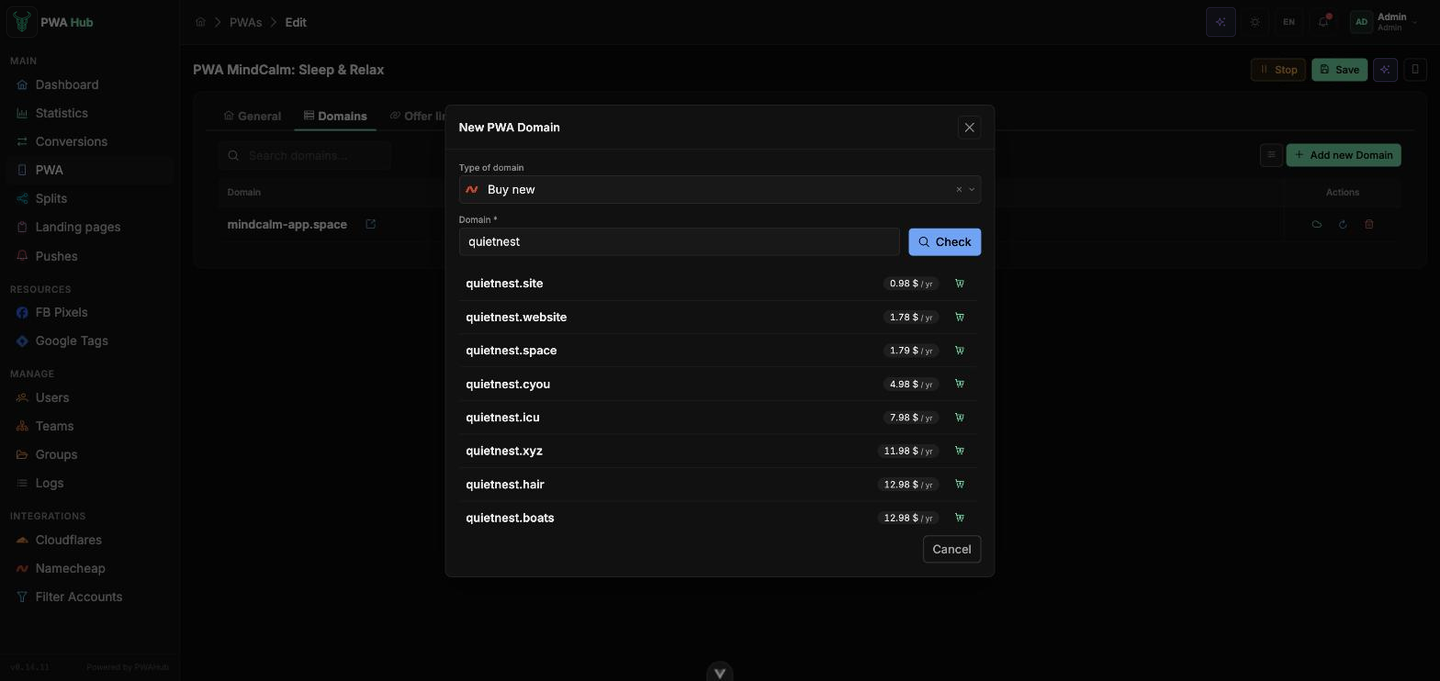
The list is sorted by the yearly price, so the cheap zones (.site, .website, .space, .cyou) come first and the familiar .xyz, .net, .app follow. Taken names and premium domains never make the list: only what can be bought with an ordinary registration is offered.
When you need a specific zone
Type the name with it - calmnight.io - and that zone is checked first and placed at the top of the list, even if it costs more than the others. The set of offered zones is configured on the server (the NAMECHEAP_TLDS variable); by default it is about fifty popular and cheap zones, checked against the live Namecheap catalogue.
A purchase charges real money
It's paid from your Namecheap account balance. History, statuses, and renewal are on the Domain purchase history tab in the "Namecheap Accounts" section.
Check and delete a domain
All connected addresses are gathered in the table below the add button. If there are no records, you will see the message "No domains found."
- Next to each address there is an arrow button - click it to open the domain in a new tab and see for yourself that the PWA is indeed served at that address.
- The Level column shows the address nesting depth and helps you tell a root domain from an address with a subdomain at a glance.
- If there are many domains, use the "Search domains..." line above the table.
To detach an address, click the trash icon in the "Actions" column and confirm the deletion with the "Yes" button.
Deletion detaches the address
After deletion, the domain stops leading to the application. If this was the only address, the PWA will become unavailable until you connect a new domain - so don't delete a live address without preparing a replacement.
Along with the domain, PWA Hub also deletes its DNS records in Cloudflare. The zone itself stays in the Cloudflare account - you can connect the domain again and the records will be recreated.
DNS tools
Besides deletion, the "Actions" column holds two tools for working with DNS - for PWA domains and split domains alike. They come in handy when an address opens incorrectly and you want to fix the connection without deleting the domain itself.
- Toggle DNS - a cloud icon. Enables or disables the domain's DNS connection. A green cloud means DNS is already connected.
- Recreate DNS - a refresh icon. Recreates the DNS records for the domain. Helps when an address behaves incorrectly and it's easier to rebuild the connection from scratch.
The Cloudflare account is picked automatically
The connect-domain window has no Cloudflare account selector - a new zone is always created on the primary account. If you need the domain on a different account, make that one primary first (see “Cloudflare accounts”). Domains whose zones already belong to another account keep being served through it.
Domains can also be attached and detached from scripts - see the API section "Domains".