
PWA - list and management
The PWAs section is your control center for all applications. From here you find the PWA you need, keep an eye on its domains and traffic, start and stop applications with a single click, and perform everyday actions: editing, cloning, archiving. Open the section from the PWAs item in the sidebar.
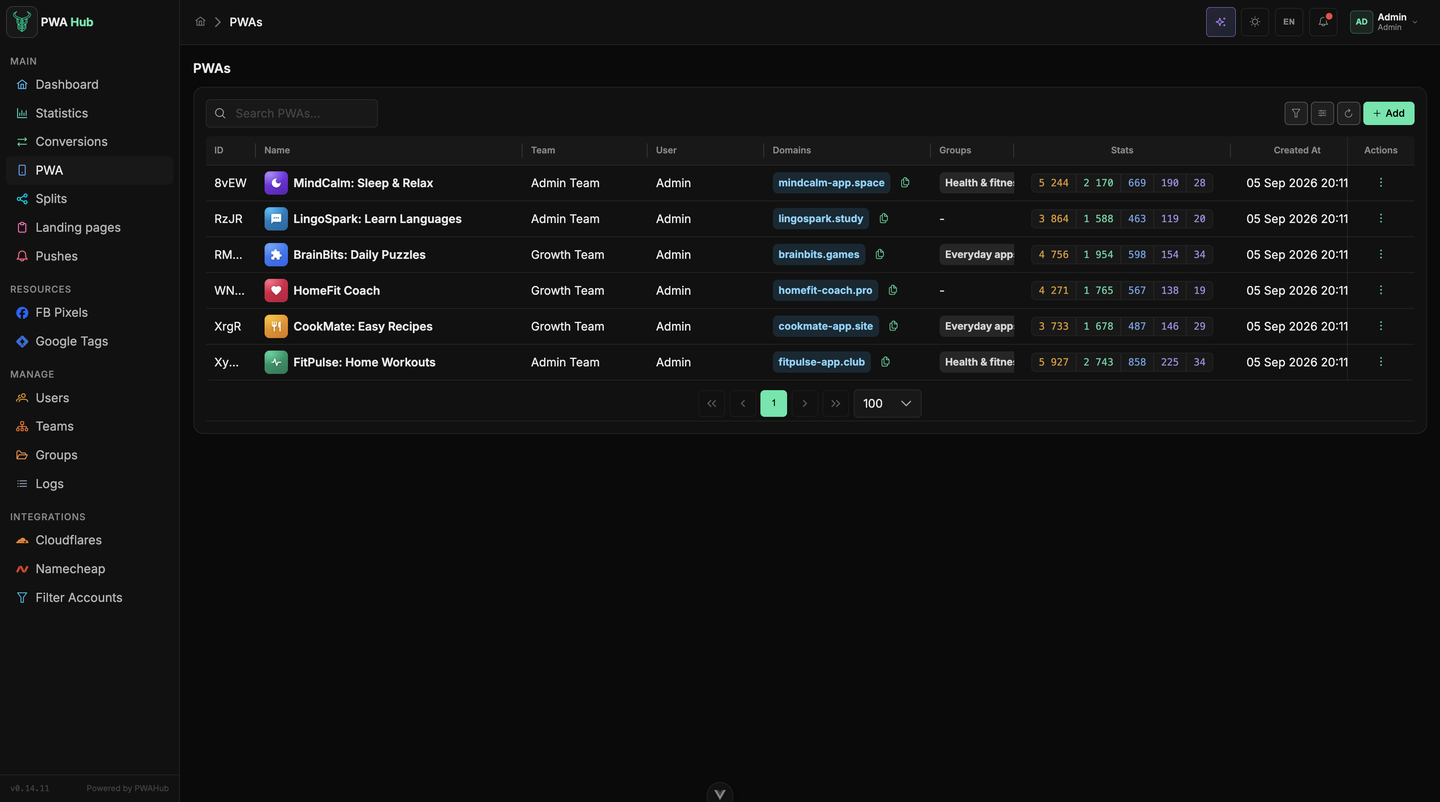
What you see in the list
Applications are gathered into a table - one row per PWA. A single glance is enough to understand the state of things:
- ID - the app's short identifier, the same one you see in the logs and in the page address.
- Name with the app's icon - the very one on its storefront, so you can spot the PWA you need at a glance.
- Team and User - which team the application belongs to and who created it.
- Domains - all of the application's addresses, each as a separate tag. Next to them is a copy button: click it and the address is in your clipboard, with "Copied to clipboard" popping up.
- Groups - the access groups the PWA belongs to.
- Stats - five numbers in a row: uniques → installs → regs → deps → repeats. Hover any of them and the tooltip tells you what share of the previous step it kept. It's the same funnel as on the "Statistics" page, folded into a single row.
- Created At - the date and time of creation.
- Status -
runningorstopped. This isn't just a label but a toggle - see below.
Which columns are shown, in what order and how wide is up to you - the button next to the filters stores the set for your account; see the "Interface" section.
At the bottom of the table you choose the number of rows per page: 50, 100, or 200. Data loads page by page, so even a large list opens quickly. If nothing matches the current filter, you'll see "No PWAs found" instead of rows.
Start and stop with one click
The tag in the Status column works as an on/off switch for the application:
- For a running PWA (
running), hovering shows the tooltip "Deactivate PWA" - a click stops the application. - For a stopped one (
stopped), the tooltip is "Activate PWA" - a click starts it.
The state switches instantly, with nothing to confirm. If the operation fails, the tag returns to its previous state on its own - you won't be left with a false status. The same action is available from the row menu (Start / Stop).
Find the application you need
When there are many PWAs, the search and filters in the list header help:
On the left of the toolbar sits Search (the "Search PWAs..." field): start typing and the list filters itself after a fraction of a second, with no separate button to press. Everything else lives in the popover behind the funnel button, and this list has more filters than any other:
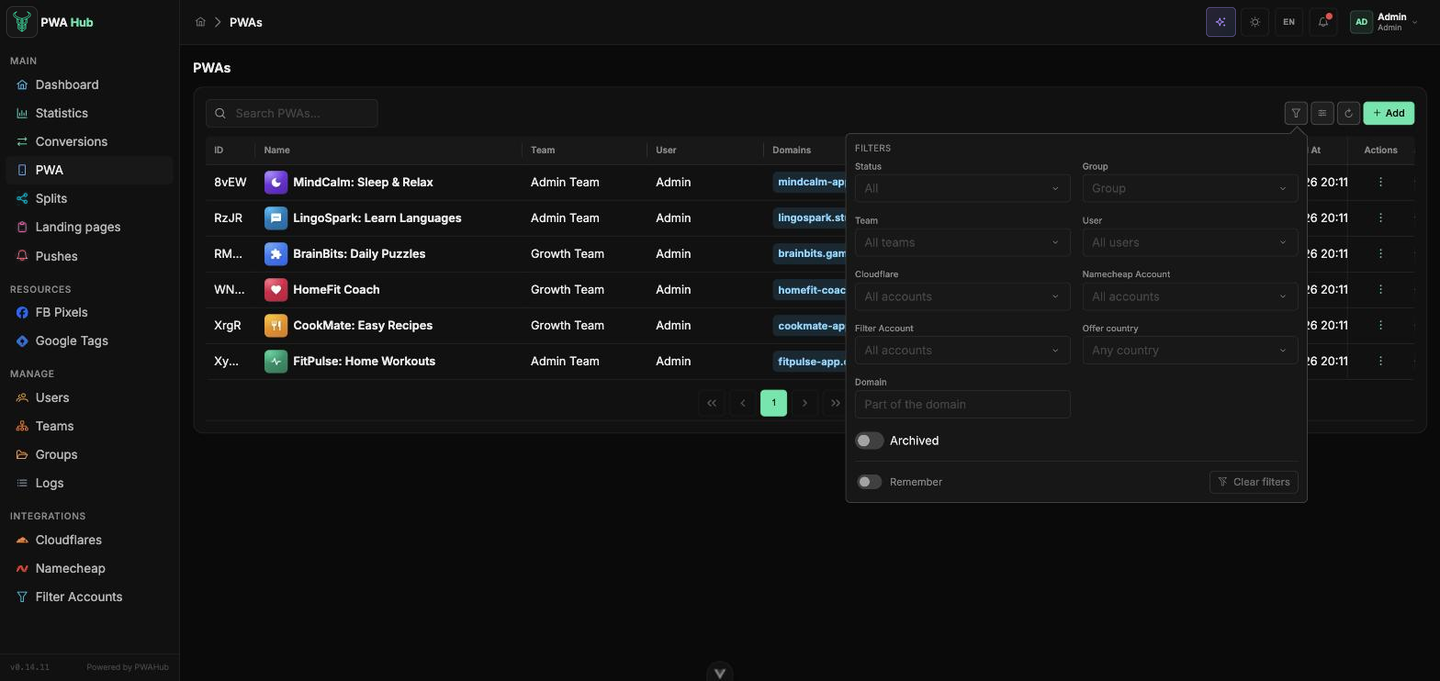
- Status - All, Active or Inactive.
- Group, Team, User - whose app it is and who it's open to.
- Cloudflare, Namecheap Account, Filter Account - the apps running through a given account. Handy when an account gets banned or runs out of balance and you need to see who is affected.
- Offer country - show only the apps sending traffic to the selected GEO.
- Domain - part of the address; useful when you remember a piece of the domain but not the app's name.
- Archived - a toggle: show archived PWAs (usually they're hidden).
The funnel button carries the number of applied filters, Remember keeps them until your next visit, and Clear filters returns the list to its original view. The arrows button next to it reloads the list from the first page.
Actions on an application
The ⋮ button at the end of a row opens a command menu:
- Start / Stop - the same as clicking the status tag.
- Edit - opens the application in a form where all of its settings are changed.
- Clone - creates a copy of the application (see below).
- Statistics - opens the Statistics page already filtered by this application, so you can see which sub tags bring it installs (see the Statistics section).
- Archive - removes the PWA from the list. Before doing so it asks for confirmation: "Are you sure you want to archive this PWA?".
A new application is created with the green Add button above the table - it opens the creation form, which starts on the "General" tab.
Archiving is not deletion
Archiving simply removes the application from the main list; the PWA itself doesn't go anywhere. To see it again, turn on the Archive filter.
Clone an application
Cloning is a quick way to spin up a new PWA based on one that's already configured: all parameters of the source application are copied, and all you have to do is name the copies.
- In the row menu select Clone - the "Clone" dialog opens.
- The first field is already prefilled with the source application's name plus
Clone. Change it to your liking. - Need several copies at once? Click the "+" button and add as many fields (Name 2, Name 3…) as copies you want. Empty fields are skipped during creation.
- Click Yes - all copies are created in a single operation, and the list updates. The Cancel button closes the dialog without changes.
A series of identical PWAs in one go
If you need to spin up a batch of identical applications, add the required number of fields and give them different names - they'll all be created with a single click on Yes. This is noticeably faster than building each application from scratch.
Unique texts for the copies
Copies of one app with identical texts are easy to spot. Turn on Make the texts unique (AI) in the dialog: AI rewrites the description, what's new and the reviews of every copy in the background - same meaning, different words, different reviewer names.
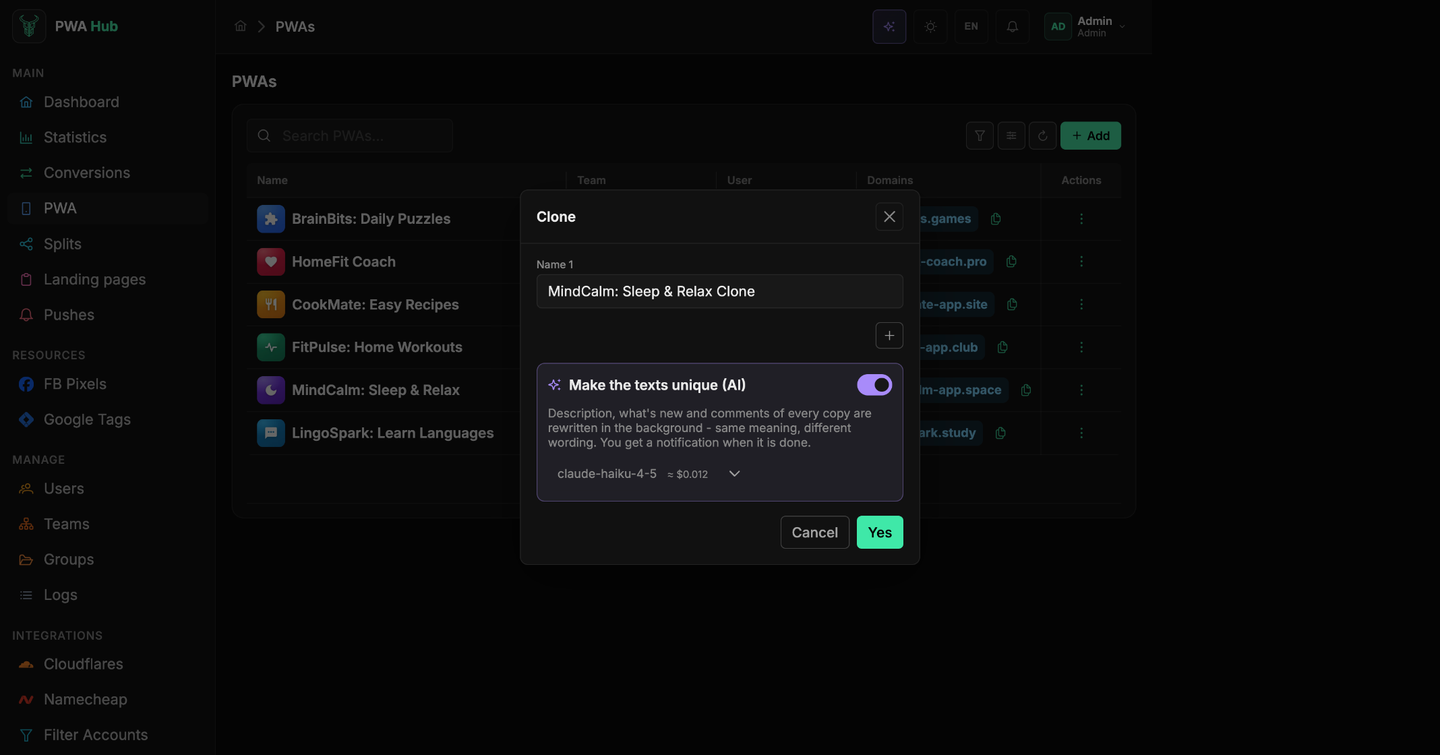
The copies are created right away with the source texts; the new texts arrive a few minutes later, and you get a notification when they are done. A text you have already edited in a copy is left alone. The approximate price for all copies is shown under the switch. Up to 20 copies can be created at once.
Apps can also be managed from scripts - see the API section "PWA".