
Interface
After signing in, you land in the PWA Hub workspace. No matter which section you're working in, two elements are always in place: the sidebar on the left - for switching between sections - and the top bar at the top, keeping the theme, language, notifications, and your profile within reach. Once you get the hang of them, you'll find your way around the system without a second thought.
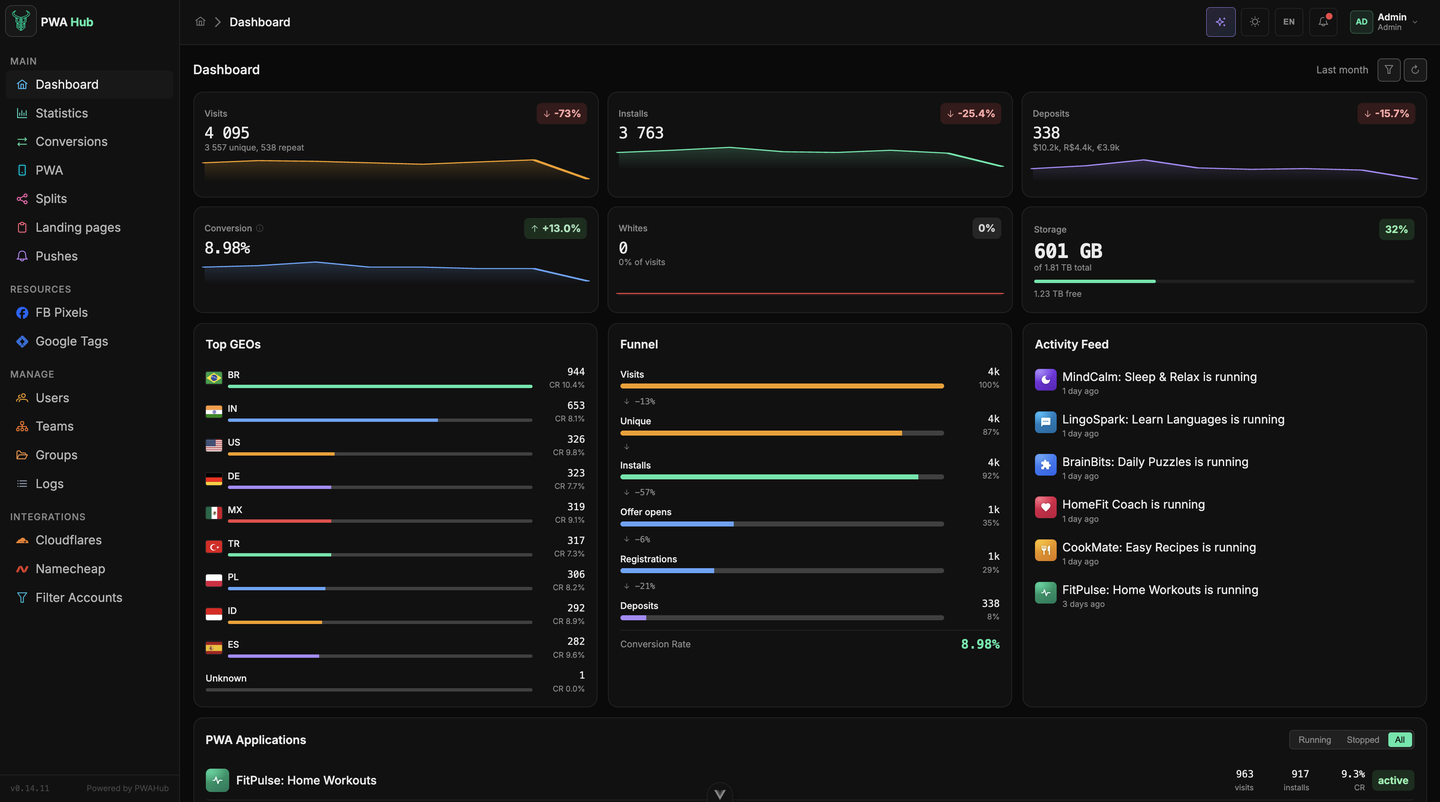
Sidebar
This is your map of the system. At the top is the PWA Hub logo, at the bottom is the app's version number (handy if you ever need to report an issue) and the Powered by PWAHub link. In between are the items, grouped into four sections: MAIN, RESOURCES, MANAGE, and INTEGRATIONS.
MAIN - day-to-day work with traffic and apps:
- Dashboard - the start screen with an overview: traffic, installs, conversion, recent events. You come here to quickly get a sense of how things are going.
- Statistics - statistics by sub tags: which campaign, creative, or source brings the installs (see the Statistics section for details).
- Conversions - the log of events from the affiliate network: every install, registration and deposit, with a mark showing whether it reached Facebook (see the Conversions section).
- PWA - your apps: create a new one, edit, start, or stop.
- Splits - distributing traffic across several PWAs by weight (A/B testing and more).
- Landings - your white pages: upload them and attach them to apps.
- Pushes - push notifications: they bring back the people who already installed your app.
RESOURCES - the team's shared resources for ad networks:
- FB Pixels - Facebook pixels with Conversions API tokens.
- Google Tags - Google Ads tags with conversion labels.
Everyone sees the MAIN and RESOURCES groups. The next two - MANAGE and INTEGRATIONS - are shown only to administrators.
MANAGE - the people and structure of your account:
- Users - accounts and their roles (admin, team_lead, customer); this is also where you approve people who signed up on their own (for example, via Telegram).
- Teams - the teams that own PWAs, splits, and landings.
- Groups - access groups: open apps or resources to people from other teams.
- Logs - system events, an audit of actions, received postbacks and TDS decisions.
INTEGRATIONS - connections to external services:
- Cloudflares - Cloudflare accounts for managing domains and DNS.
- Namecheap - Namecheap accounts for working with domains.
- Filter Accounts - anti-fraud filters that screen out unwanted traffic.
The active section is highlighted, so you always see where you are.
Free up room for content
Hover over the right edge of the menu and click the round toggle button - the menu collapses to icons. Hovering over an icon shows a tooltip with its name, so nothing gets lost. On a phone, the menu hides behind the hamburger button (☰) on the left of the top bar.
Top bar
The top bar is pinned above the content and stays put as you scroll. On the left is the breadcrumb (the path to the current screen - handy so you don't get lost). On the right are the quick toggles you need on any page.
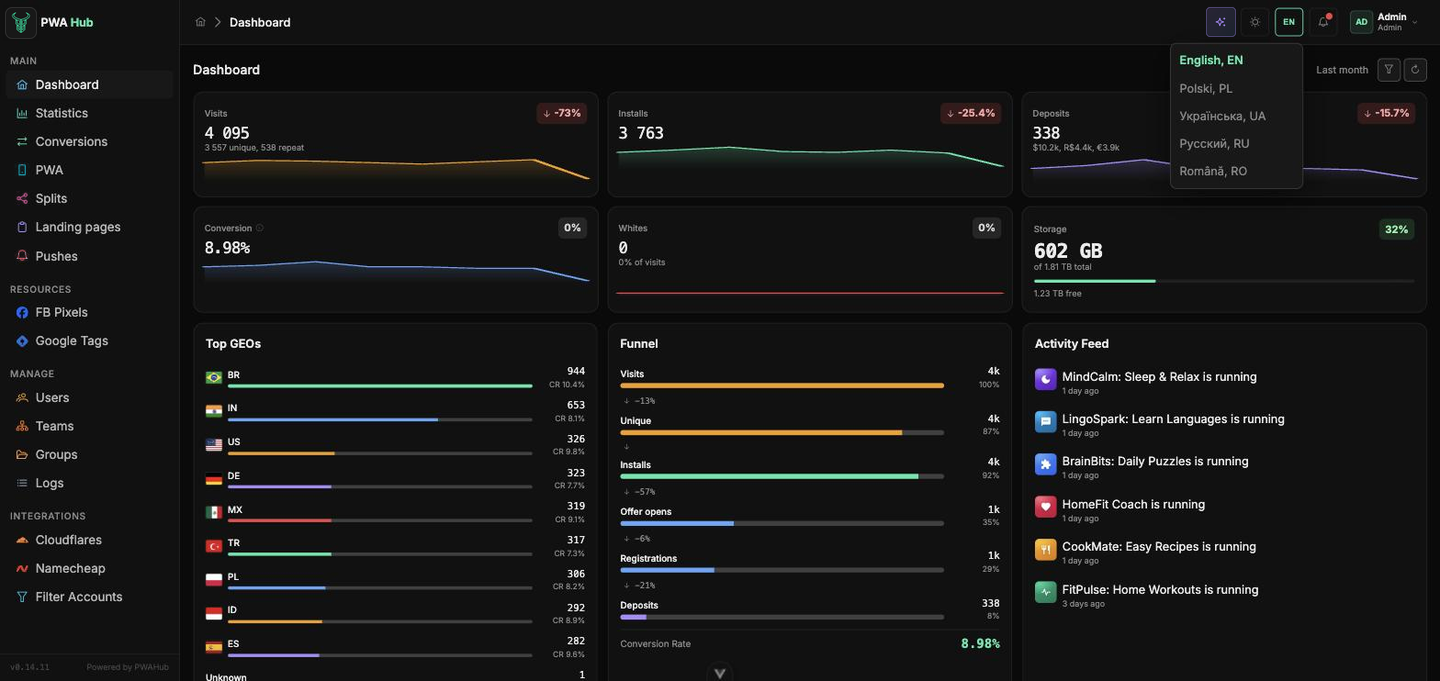
Theme and language
The moon-or-sun button switches between the dark and light themes - pick whichever is easier on your eyes. Next to it, a button with the language code (for example, RU) opens a list: Russian, English, Ukrainian, Polish, Romanian. Both the theme and the language are remembered - the next time you sign in, the system opens the way you left it.
Notifications
The bell is your way to not miss anything important. When something happens (for example, a PWA or split stops), a red dot lights up on it. Click it to open the list of events.
A typical scenario: you notice the red dot → open the bell → see "PWA stopped" in the list → click the entry and land right on the app in question to sort it out. The Mark all read button clears all the badges at once when you've reviewed everything.
Profile and sign-out
On the right are your avatar with your initials, your name, and your role. Clicking opens a menu:
- Profile - your personal page: name, password, Telegram link, silent notifications, and the API key. It's covered in detail in the Profile section.
- Settings - settings for the whole instance: system updates, branding, the postback address, log retention, AI generation and the Telegram bot. Only administrators see this item.
- Sign out - logs you out. Afterward you return to the sign-in screen.
Lists: filters, columns and search
Every section with a list - PWAs, pushes, splits, landings, conversions, logs, domain purchases - works the same way: search on the left of the toolbar, three buttons on the right - filters, columns and refresh. Learn them once and every list in the panel behaves alike.
Filters
The funnel button opens the Filters popover with everything that narrows the list down: period, statuses, teams, apps, accounts. The button itself carries a number - how many filters are currently applied - so an active filter never goes unnoticed.
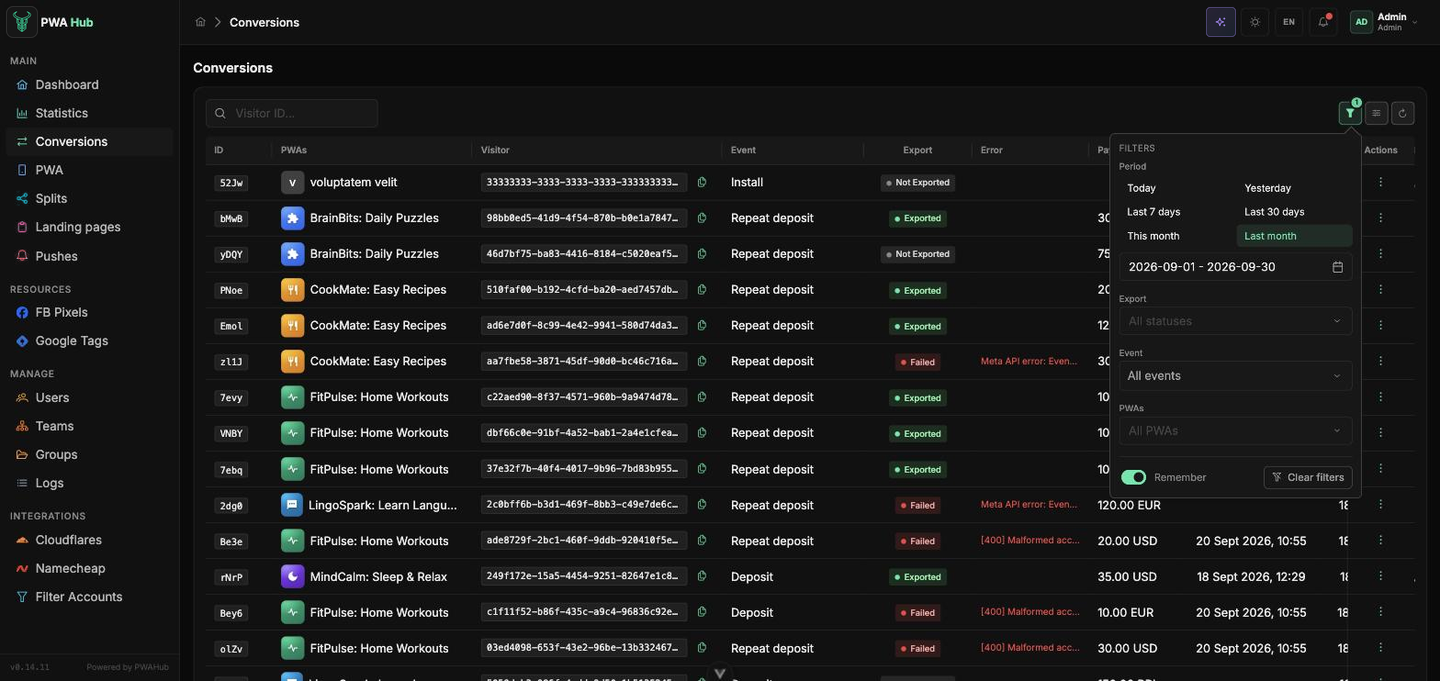
Where a list depends on dates, period presets sit on top - Today, Yesterday, Last 7 days, Last 30 days, This month, Last month - applied in one click, with the field below for a custom range. Logs and Namecheap domain purchases add All time to them.
The Remember switch keeps this table's filters until your next visit - handy when you check the same slice every day. Clear filters drops everything at once.
Columns
The next button opens the table's column list: the switch shows or hides a column, and the handle on the left lets you reorder them. The header shows how many columns are visible out of the total.
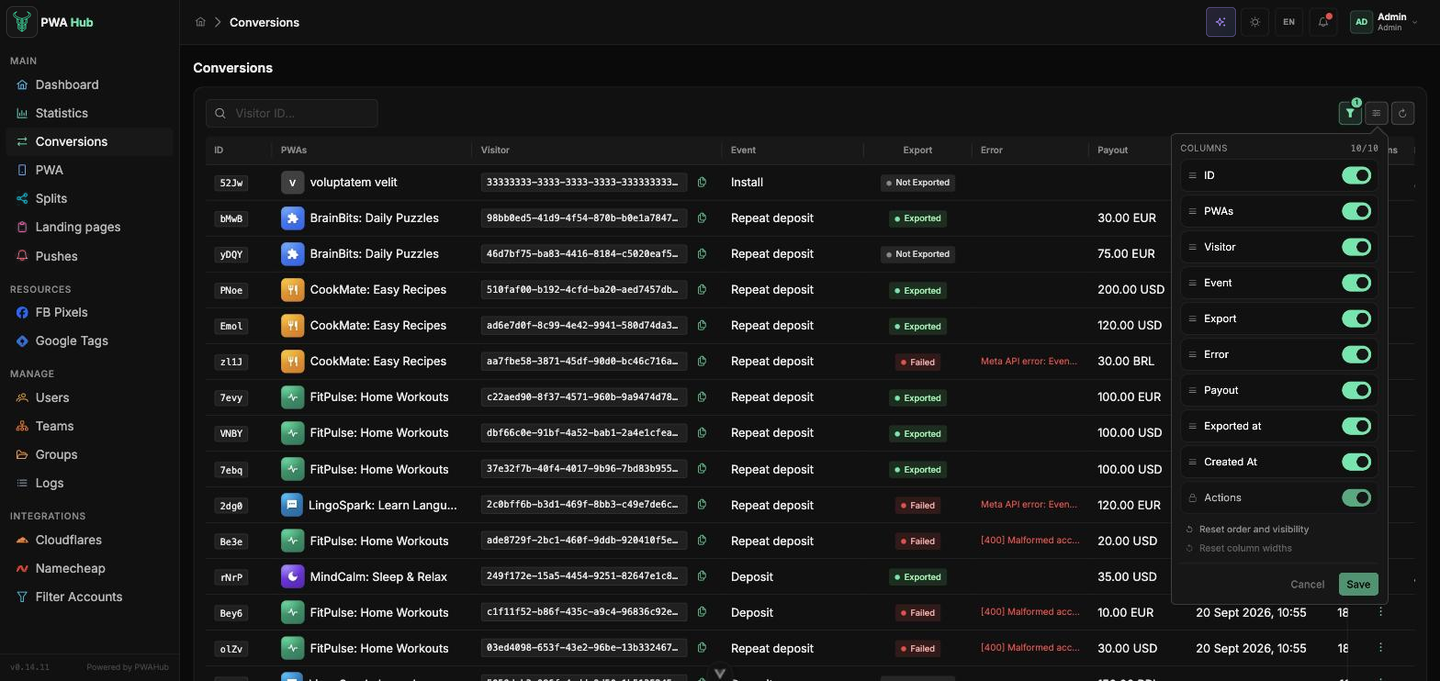
- Reset order and visibility brings back the original set of columns.
- Reset column widths undoes the widths you dragged by the header's edge.
- Service columns are marked Always shown - those cannot be hidden.
Settings are stored with Save and remembered for your account: colleagues in the same panel see their own columns, and you see yours from any device.
The header stays put
While you scroll a long list, the toolbar with search and buttons and the row of column headers stay pinned to the top of the screen - you always know which column you're looking at.
Preset accounts in the PWA form
When you create or edit a PWA (the General tab), some of the settings are accounts prepared for you in advance. There's nothing to configure by hand: the lists already contain only working options - you just pick the right one.
- iOS template / Android template - how the storefront looks on each platform: Native Store, Native Store Green, or Web Store.
- Cloudflare - the Cloudflare account that powers the app's domains.
- Filter Account - an anti-fraud filter that screens out unwanted traffic.
- Stream / Campaign - the stream or campaign inside the filtering service; for Adspect and TrafficArmor with an API Key it is created with the + button right from the form.
- Namecheap Account - which wallet buys domains for this app.
- Groups - the access groups the app belongs to.
- Landing page type - what to show white visitors: a redirect to an external address, one of your uploaded landing pages, a blank page, or the landing disabled.
Everything is pre-filled
When you create a new PWA, the primary Cloudflare and Filter Account accounts are filled in automatically - most of the time you can just leave them as they are and save the app. If needed, you can pick a different option from the list at any time.