
Notifications
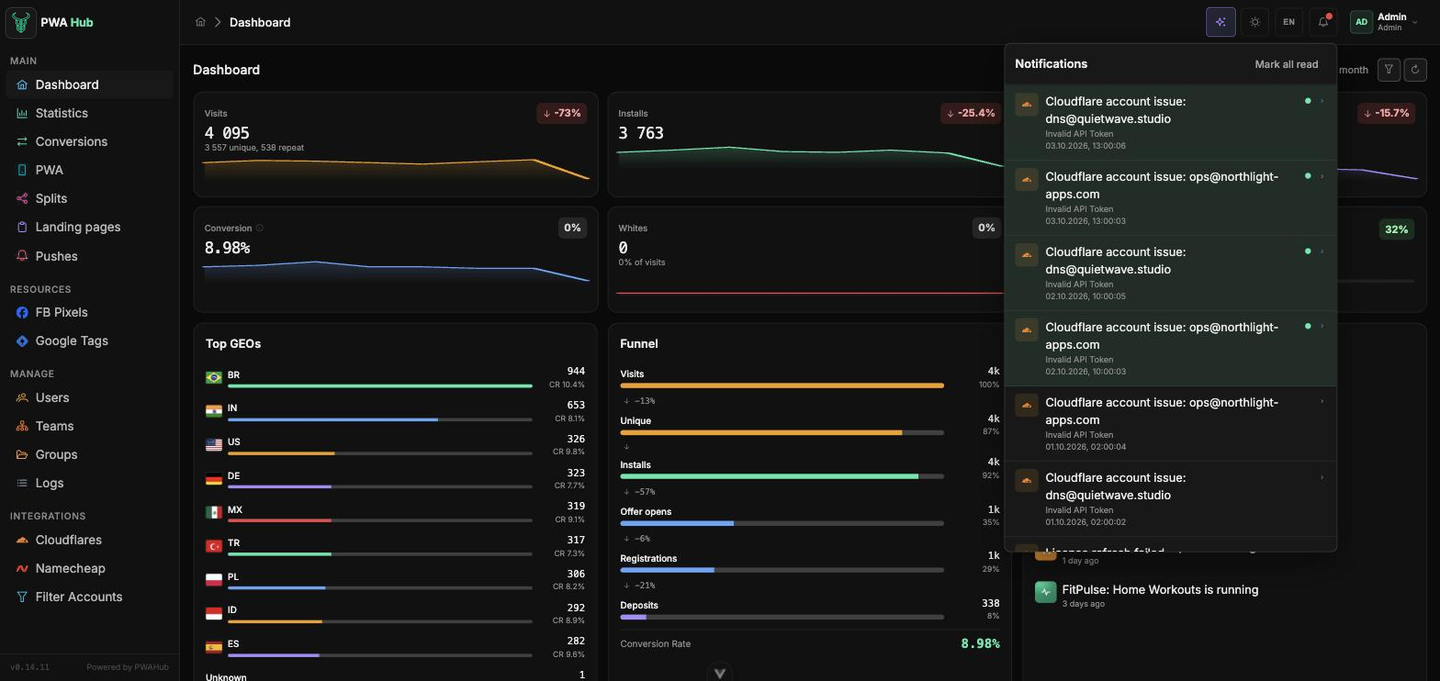
While you go about your business, PWA Hub keeps an eye on your applications for you. If a PWA or split suddenly stops and stops accepting traffic, you'll know about it right away, not an hour later when you notice a drop in installs. This is handled by the bell in the top-right corner: events arrive instantly, the panel updates itself, and there's no need to reload the page.
Why you need it
The idea is simple: a stopped application means lost traffic. The sooner you find out about it, the less you lose. The bell works like your on-duty watchman: it spots a problem, highlights it with a red dot, and drops the event into the list. All that's left for you to do is take a look and decide what to do.
- A red dot on the bell = there are unread events. Once you've read everything, the dot goes out.
- Clicking the bell opens the panel; clicking again (or clicking elsewhere) closes it.
- In the panel, new events are always on top. The Mark all read button clears the indicator all at once, once you've reviewed everything.
Only your events land in the bell
You see notifications that concern your own PWAs and splits specifically, nothing extra. If there's no list yet, the panel will simply show No notifications.
One click and you're already there
The most useful part is not having to hunt for the problem application manually. Click on a notification row, and PWA Hub will open the right section for you, already filtered by that object:
- PWA stopped → the PWAs section opens, filtered by the application name.
- Split stopped → the Splits section opens, filtered by the split name.
At the same time, the row is marked as read and the panel closes; you land right where you can dig in and get the application running again.
How to read the icons
On the left of each row is an icon. An amber one (with a power-off symbol) means "something stopped." The color and symbol tell you what it's about even before you read the text.
System notifications for administrators
If you have the admin role, the bell also delivers system events - the ones that concern the whole installation, not an individual application:
- System Update - the outcome of the latest update: "System updated successfully", "System is already up to date", or "System update failed".
- License renewal - if the latest license check didn't go through, you'll get a notification with the reason text.
- New User - when someone signs up via Telegram, you'll see their name and e-mail. Clicking that row opens the Users section, where you can approve access.
- Password reset request - a user clicked Forgot password? on the sign-in page. Clicking the notification opens the Users section, already filtered down to that person - all that's left is to set them a new password. Repeat requests from the same email don't arrive more often than once every 10 minutes.
- Telegram linked / unlinked - someone linked Telegram login to their account or unlinked it. Useful as a security signal: if the user did no such thing, it's worth taking a closer look.
- Domain purchase (Namecheap) - a domain bought through Namecheap has been registered and set up successfully. And if a purchase gets stuck after money has been charged, you'll get a separate warning that it needs to be finished manually.
- Low Namecheap balance - a Namecheap account has less than $5 left. Top it up so domain purchases don't fail.
- Domain expiring soon - one of the purchased domains has less than 30 days left on its registration. Renew it ahead of time.
- Cloudflare account issue - the hourly check of a Cloudflare account found a problem: the token was revoked, a zone was deactivated or DNS does not answer. A click opens the Cloudflares section; it arrives at most once a day per account.
- CF migration - the transfer of domains to another Cloudflare account has finished: how many zones moved, how many failed and whether any domains need their NS changed by hand.
Quiet mode: no pop-ups
By default, each new event is also highlighted with a short pop-up message (a toast) in the corner of the screen. Sometimes that's distracting, for example, when you're focused on configuring a split. In that case, turn on Silent notifications on the Profile page (the menu in the top-right corner → Profile, the Notifications card):
- Mode off: a new event shows a pop-up toast.
- Mode on: no toasts appear: "New notifications appear in the bell without pop-up messages."
The bell still works
Quiet mode only removes the pop-ups. Notifications still pile up in the bell, light up the red dot, and update in real time; you won't miss anything, just without the pop-ups.
It all happens in real time
The panel is constantly connected to the server, so an event reaches you the same second it happens:
- A new notification appears at the top of the list on its own and the red dot lights up, with no page reload.
- In parallel, the numbers on the Dashboard are recalculated, for example, the activity feed.
- If the connection dropped briefly, the list syncs itself once it's restored, so events that arrived in the meantime aren't lost.
If an event didn't arrive instantly
Instant delivery requires an active connection to the server. If it drops for a minute, no big deal: notifications aren't lost, they'll load the next time you open the application, they'll just show up a bit later.