
Profile
Profile is your personal page in PWA Hub: this is where you change your name and password, link Telegram login, and manage your personal settings. Unlike Settings, which only administrators see, every user has a profile, whatever their role.
Opening the page is simple: click your name in the top-right corner and choose Profile.
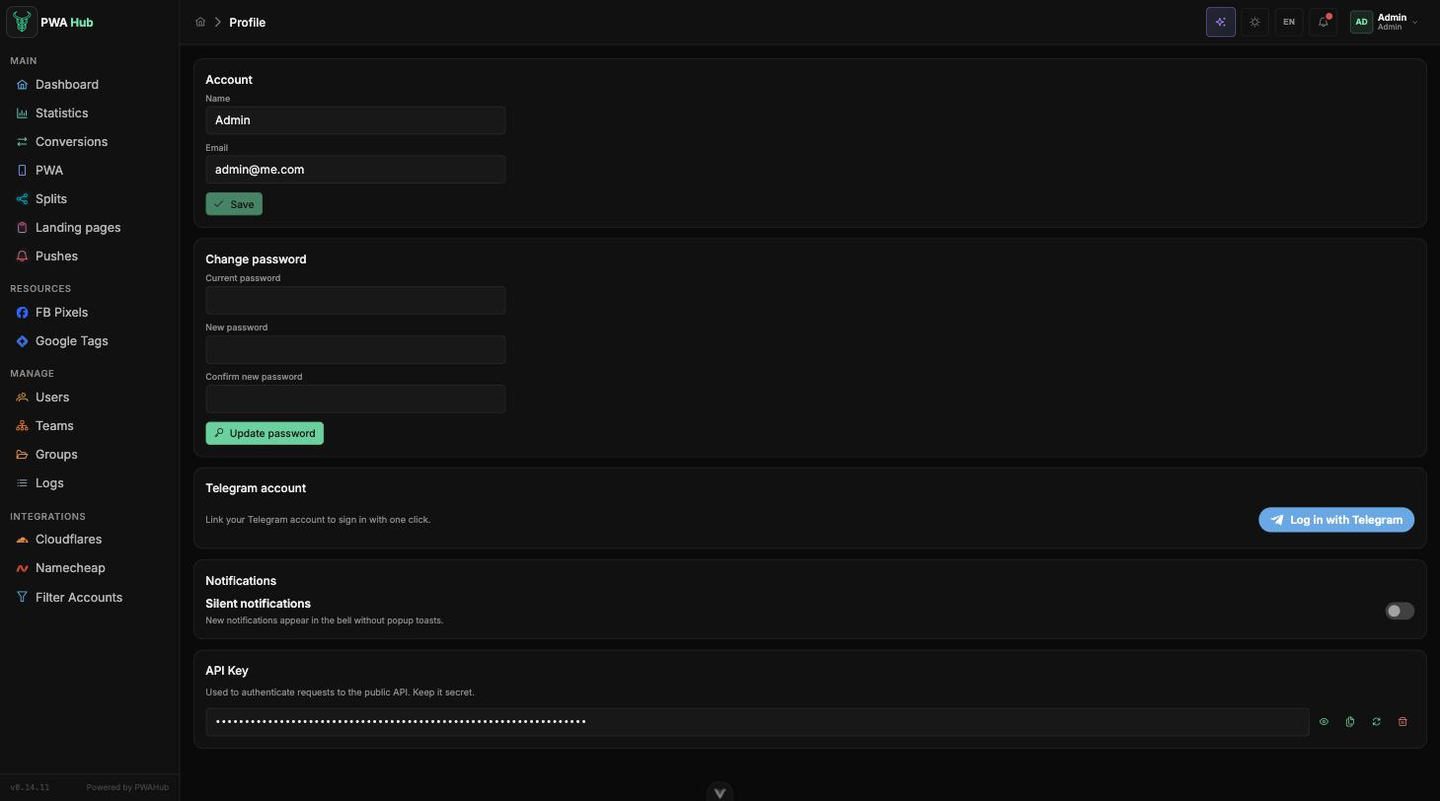
Account
The Account card holds your basic details:
- Name - the name you're listed under in the dashboard. Type a new one and click Save - the button comes alive as soon as you change something.
- Email - your login. The field is shown for reference and can't be edited: only an administrator can change the email, in the "Users" section.
Changing your password
The Change password card. Everything works the way you'd expect:
- Enter your current password in the Current password field.
- Type the new one into New password and repeat it in Confirm new password - at least 8 characters.
- Click Update password.
No need to sign in again: after the change you stay in the system - the dashboard refreshes the session on its own. On other devices where you were logged in, though, the session will end - that's normal and done for security.
If you don't have a password yet
Accounts created by signing in via Telegram start out without a password. In that case the Current password field isn't shown, and a hint sits at the top of the card: Your account has no password yet - set one to sign in with email. Set a password - and you'll be able to sign in with your email too.
Telegram
The Telegram account card is in charge of one-click sign-in. It appears only if an administrator has connected a Telegram bot (see the Settings section).
- Telegram isn't linked - the card shows a Telegram login button. Click it, confirm in Telegram - and that's it: from now on you can log in from the sign-in page with one click.
- Telegram is linked - the card shows Telegram is linked and the ID of the linked account. The Unlink button disconnects it - with a confirmation, so you won't click it by accident.
Password first - then unlink
If Telegram is your only way to sign in, the Unlink button is disabled, with a hint below it: Set a password before unlinking - Telegram is currently your only way to sign in. Set a password in the Change password card first, otherwise you'll lock yourself out.
One Telegram - one account
A Telegram account can be linked to only one user. Want to link a different one - unlink the current one first. Administrators get a notification about every link and unlink, so there's no way to "quietly" swap the sign-in method.
Notifications
The Notifications card holds a single toggle - Silent notifications. Turn it on if the pop-up messages over the interface distract you: new events will quietly pile up in the bell, with no pop-ups. Nothing gets lost - notifications still arrive instantly, just without the toasts.
API Key
The API Key card is visible only to those who have Manage API Token enabled (see the Users section) - administrators included. The key is for programmatic access to PWA Hub - from scripts and third-party services via the public API; for regular work in the interface it isn't required. How to send requests with the key and which methods are available - see the "API introduction" section.
No key yet. Click Generate Key - the system creates the key and shows it right away, so you have time to copy it.
A key already exists. In the field it's hidden behind dots, with four icons next to it:
- eye - show or hide the value;
- copy - puts the key on the clipboard;
- regenerate (Regenerate) - issues a new key in place of the current one;
- trash - deletes the key.
Regenerating and deleting ask for confirmation.
The old key dies instantly
The moment you regenerate or delete the key, the previous one stops working that same second - every script and integration using it will break until you plug in the new one. And treat the key value like a password: don't publish it in public repositories, chats, or client-side code.