
PWA - creating (General tab)
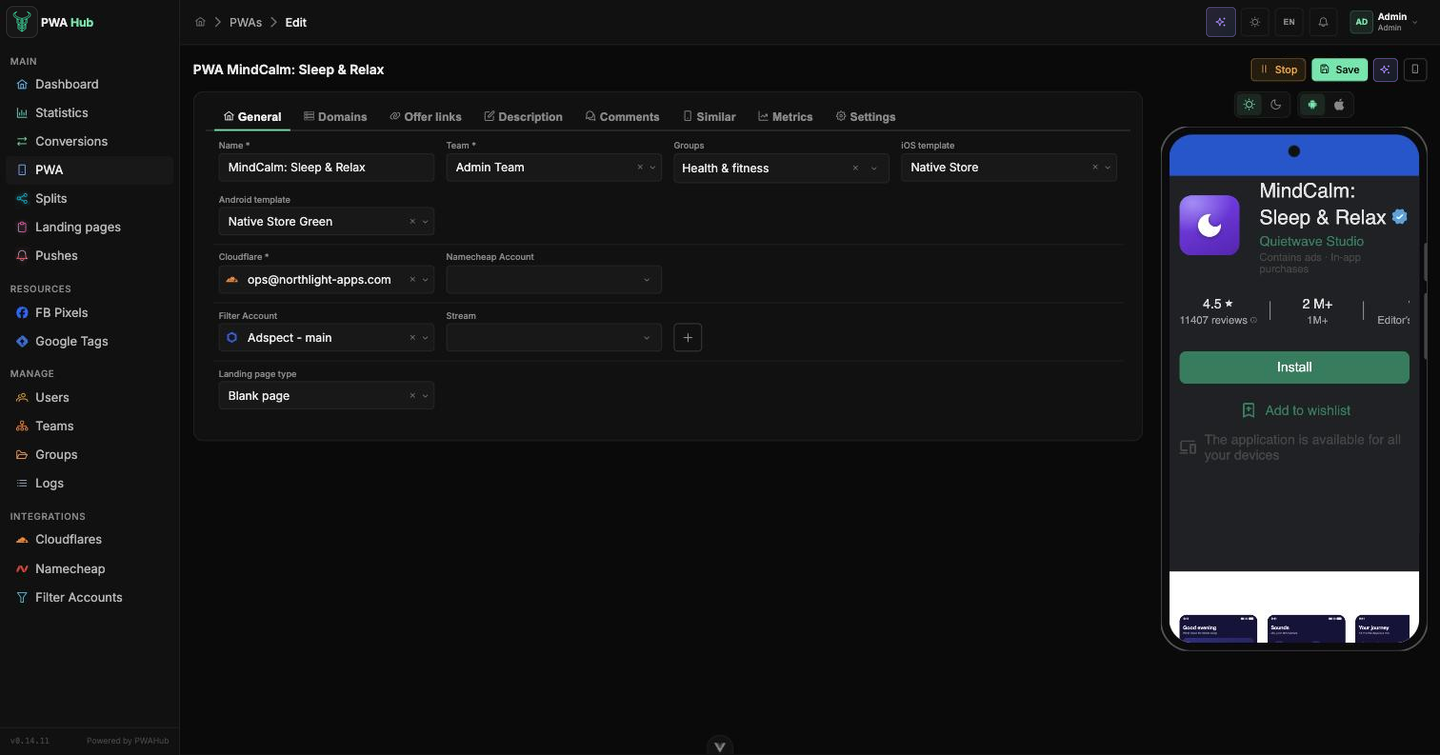
The PWA form is the workspace where a new app is born. On the General tab you spend a few minutes defining everything that determines how the app looks and who it's shown to: you give it a name, pick the storefront's appearance, connect the accounts you need, and decide what the "extra" traffic will see. The form opens via the Add button above the app list, and later - when you open an app for editing.
Save first
A new app only has the General tab available. The other tabs (Domains, Offer links, Description, Comments, Similar, Metrics, Settings), the Start / Stop buttons, and the mobile preview appear after the first save. So the first step is always the same - fill in General and click Create.
Live storefront preview
After saving, a 📱 icon (Toggle Mobile Preview) appears in the top-right corner. Click it - a phone with your storefront opens next to the form, and it updates on the fly as you change fields. Handy for seeing right away how the app looks to a visitor (see the screenshot above and on the Description tab).
What you set on the General tab
There are only a few fields here, but each one is responsible for a separate decision. Let's go through them by meaning rather than by order.
Name
The name under which the PWA lives in your dashboard: it's how the app shows up in the list and in the preview. This name doesn't reach the storefront the user sees - the storefront's own appearance is configured later, on the Description tab. If your role is not Customer, a Team field appears next to it - choose which one to assign the app to.
Templates - how the storefront looks
The storefront is set per platform: iOS template defines what an iPhone owner sees, Android template - an Android user. The app detects the visitor's platform itself and shows the matching variant, so one PWA serves both audiences.
- For iOS there is Native Store - an App Store-style storefront.
- For Android - Native Store Green (the green Google Play look) and Web Store (the blue variant). Only the colour scheme differs.
It's convenient to check how each template looks in the mobile preview right after saving: the buttons above the phone switch the theme and the platform.
Groups - who else should see the app
The Groups field puts the app into one or several access groups - that way it is seen by the users those groups are shared with, even from another team. Only groups of the PWA type from the same team as the app qualify. See the "Access groups" section for details.
Cloudflare - which account the domains run through
Cloudflare is the account through which the app's domains are proxied (DNS and protection). The list is already populated with prepared accounts - you just need to pick the right one. When creating a new PWA, the main account is filled in automatically, so in most cases you can leave the field alone.
Filter Account and Stream - who sees the storefront and who doesn't
Filter Account is a connection to the traffic filtering service. It's exactly what decides on the fly whether the visitor in front of you is a target one or an unwanted one (a bot, the wrong geo) and whether to let them into the storefront. The accounts are also prepared in advance and filled in automatically.
Next to it is the Stream field (Campaign for TrafficArmor and FraudFilter): the rules inside the service that the filter uses to judge this particular app. If the Adspect or TrafficArmor account has an API Key, the list is pulled from the service (start typing the name), and the + button creates a new stream or campaign, already configured for a PWA, without leaving the form. Without an API Key, and always for FraudFilter, the ID is entered manually. More in the "Filter accounts" section.
Namecheap Account - which wallet buys the domains
Namecheap Account is the wallet that pays for domains bought for this app on the Domains tab (the Buy new mode). When the field is empty, the primary Namecheap account is used.
The accounts are already prepared
The Cloudflare, Filter Account and Namecheap Account lists are populated in advance - usually it's enough to leave the defaults. It's worth changing them only if a specific PWA needs a different account or a different flow.
White page type - what to show the unwanted traffic
When the filter decides that a visitor is unwanted, they are served a white page instead of the storefront. The Landing page type field determines what exactly they'll see: a redirect to an external URL, your uploaded landing, disable the white page, or serve an empty page. For the URL or uploaded-landing option, an additional field appears next to it (the address or a landing picker). More about the types themselves and preparing pages is in the "Landing pages" section.
Changing the type resets the value
If you change the type, the previously selected URL or landing page is cleared - set it again for the new variant.
Saving and validation
The button in the form header is called Create while the app is new. After the first save you land on the editing page, the button changes to Save, and next to it appear Start / Stop (to turn the app on or off) and the phone icon for the mobile preview.
Changes take effect only after "Save"
All edits in the form - on any tab, including the deferred upload of icons, screenshots, and avatars - are sent to the server only via the Save button. Close the form without saving and the changes roll back. This is the general rule for the whole PWA form.
The form points out where the error is
If some field is filled in incorrectly, when you save the form will switch to the right tab by itself and highlight the problem. An error in the name, templates, Cloudflare, Filter Account, or white page type will return you to General - fix the highlighted field and save again.
The Settings tab
A saved app's Settings tab holds two blocks.
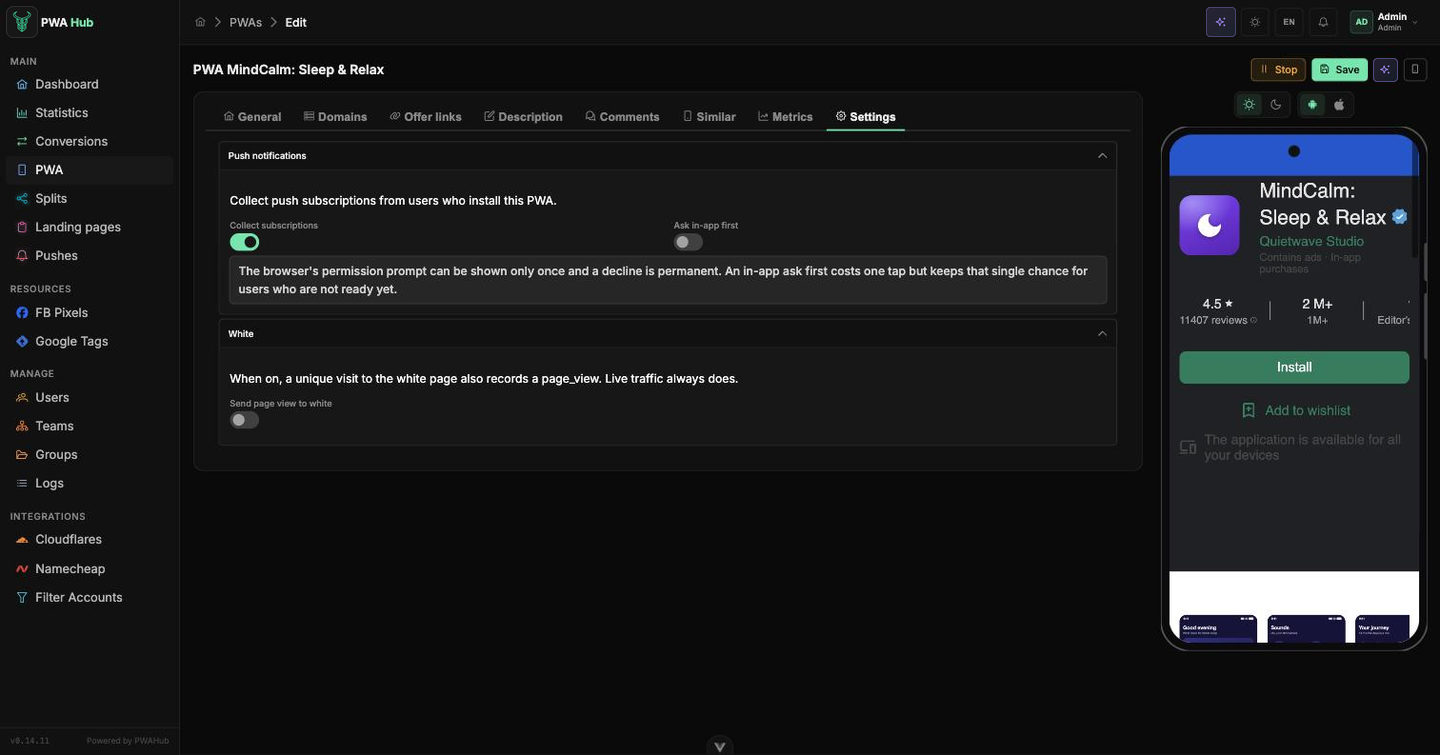
Push notifications. The Collect subscriptions toggle lets the app collect notification subscriptions, and Ask in-app first shows your own screen offering to enable them before the browser's own prompt is called. This is the starting point for campaigns: while collection is off, the subscriber base does not grow and there is nobody to send to. The campaigns themselves are covered in the Push notifications section.
White. The Send page view to white toggle decides whether a page_view is recorded when a unique visitor lands on the white page instead of the storefront. Live traffic always records that event, so the toggle only affects those the filter screened out. Turn it on if you want the full volume of visits to the domain in your statistics; leave it off if the numbers should only cover people who reached the storefront.
Mobile preview
The phone icon in the header opens a preview panel to the right of the form. It shows how the app looks on a device and updates on the fly as you make edits - handy for immediately assessing the chosen template and design. The panel is only available for a saved PWA, and its state (open or hidden) is remembered between visits.