
Signing In
Signing in is your starting point in PWA Hub. Enter your email and password, click the button, and you land in the Dashboard where your apps, splits, and landing pages are waiting. Let's walk through the quick sign-in, one-click login via Telegram, signing out, and what to do if the panel greets you with a license message.
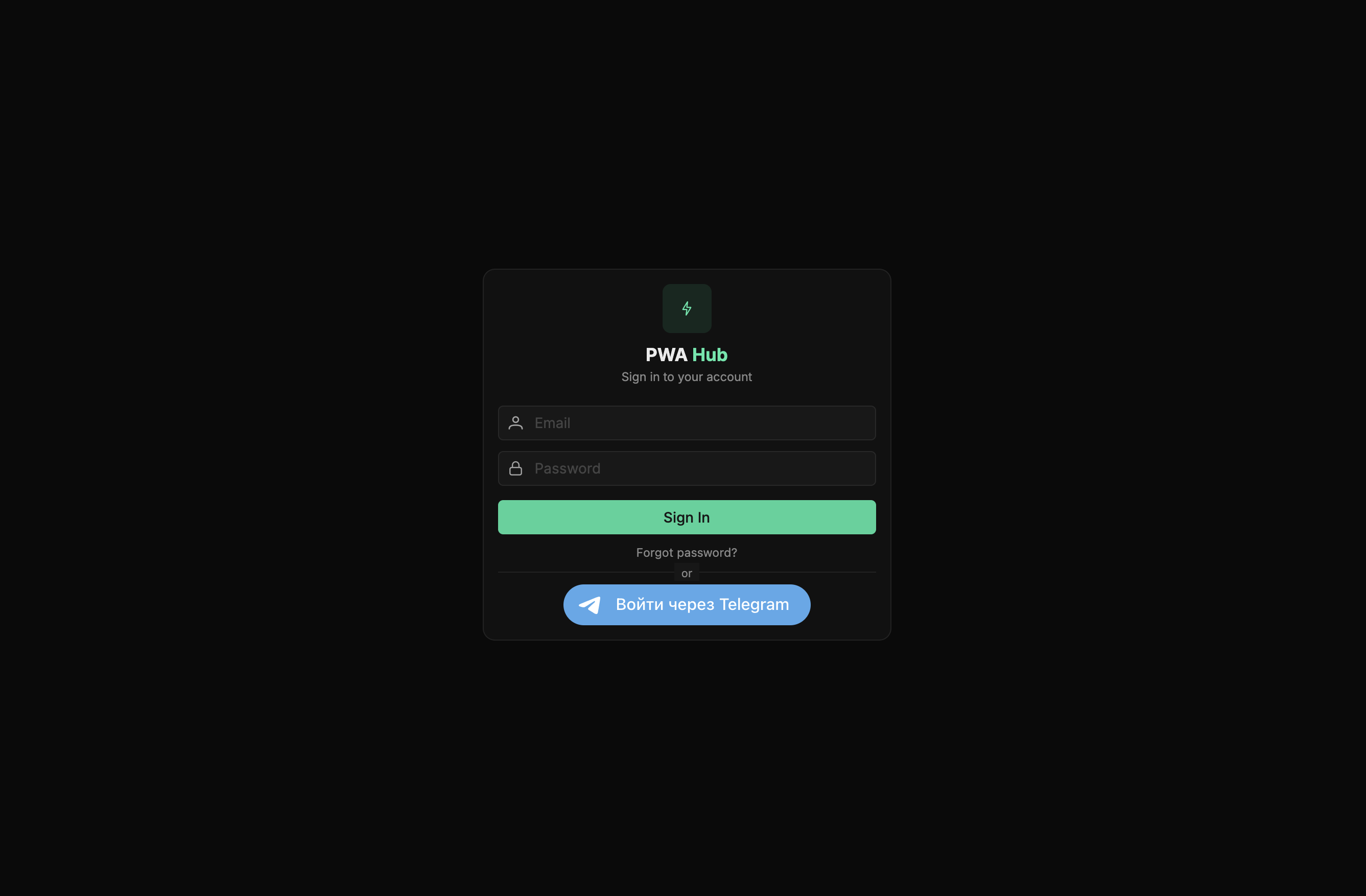
Quick sign-in
Open your panel's address in a browser - you'll see the PWA Hub card with the caption Sign in to your account. From there it's just three steps:
- Enter the email and password for your account.
- Click Sign In.
- Done - the Dashboard opens with a summary of traffic, installs, and activity.
The cursor is already in the email field, so you can start typing without reaching for the mouse.
First sign-in after installation
On a fresh server the first administrator signs in by the server's IP - https://<server-ip>/, accepting the browser's certificate warning. The email is [email protected], the password is the ADMIN_PASSWORD value from the Generated Configuration block the installer prints at the end (it's also in /opt/pwa/.env). Change this password right after the first sign-in. Then, on the license screen, enter the key and the panel domain: after activation the panel opens only on that domain, and the IP entry closes (see the Installation and "License" sections).
Forgot your password
If you can't sign in, don't waste time guessing. Enter your email in the Email field and click the Forgot password? link below the sign-in button. A Request sent message appears - it means every administrator has already been notified, and one of them will set you a new password. No need to wait for any emails: recovery in PWA Hub goes through an administrator, and they'll pass the new password to you directly.
Don't click it over and over
One click is enough: repeat requests from the same email are merged, and administrators won't get the notification more often than once every 10 minutes.
Sign in with Telegram
If a Telegram bot is connected on your server, an or divider and a Telegram login button appear below the form. This is the most convenient method: click the button, confirm the login in Telegram, and you're in the panel - no password required.
No button means Telegram login isn't set up. An administrator enables it in the Settings section (the Telegram Login card - the bot's username and token); until that's done, sign in the usual way with your email and password.
What awaits you inside
After signing in, a menu appears on the left - this is where you manage everything:
- Dashboard - summary statistics and an activity feed.
- Statistics - statistics on your traffic's sub tags.
- PWAs - your PWA applications.
- Splits - traffic distribution across applications.
- Landings - landing pages.
Administrators get more items - they additionally see the groups for managing people and integrations. In the top-right corner is the account menu with your name and role. From there you can open Profile (your profile page), Settings (administrators only), and sign out.
Signing out
Ending your session is simple: open the menu in the top-right corner and choose Sign out - you'll return to the sign-in page.
Working on a computer that isn't yours
On a shared or someone else's machine, always sign out with Sign out when you're done, so no one can open your panel after you.
The panel won't open: license screen
If the panel has no active license - right after installation or once the term has expired - instead of the sections you'll see a "License Expired" screen with a field for the key. Paste your license key and click "Update License" - the panel unlocks.
For more on activation, see the "License" section.