
Landing pages
A landing page (or white page) is a neutral placeholder page that a PWA shows instead of its main content when that's needed. You prepare such a page in advance, pack it into a ZIP, and upload it here once, after which you can attach it to any of your applications.
The point of this section is to be your personal library of white pages. Upload an archive once, and then just select it in the settings of the PWA you need, without uploading it again.
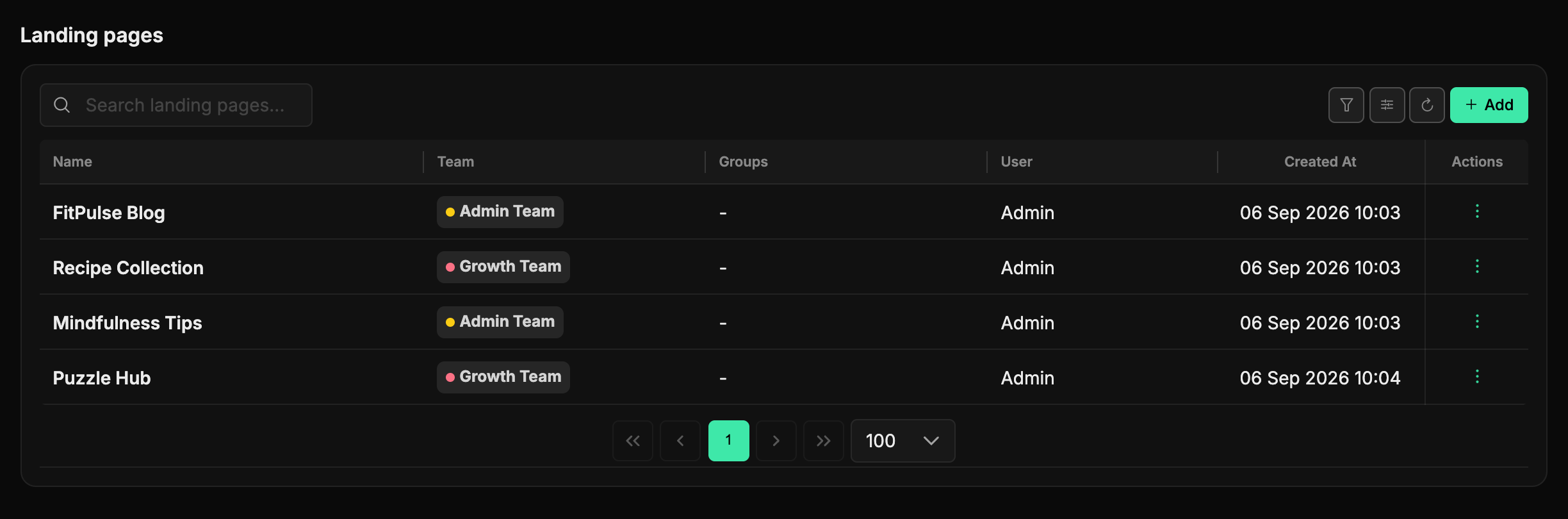
The table holds the landing name, the Team, the access Groups, who created it and the creation date. The landings updated last are on top: change a landing and the record moves up. Above it are the search and the Add button, the funnel button hides filters by team, groups and the Archived toggle, and next to it sit the column settings (see the "Interface" section).
How this saves time
The same white page can be reused across several PWAs at once. Prepare an archive, add it to this section, and select it wherever you like. Changing the page in one place is easier than re-uploading it into every application.
Add a landing page
Click Add - the New Landing page page opens. It takes just three steps:
- Enter a clear Name - you'll use it to find the page in the list and to select it in the PWA settings.
- Choose the Team the landing belongs to and, optionally, access Groups so that users of other teams can see the page.
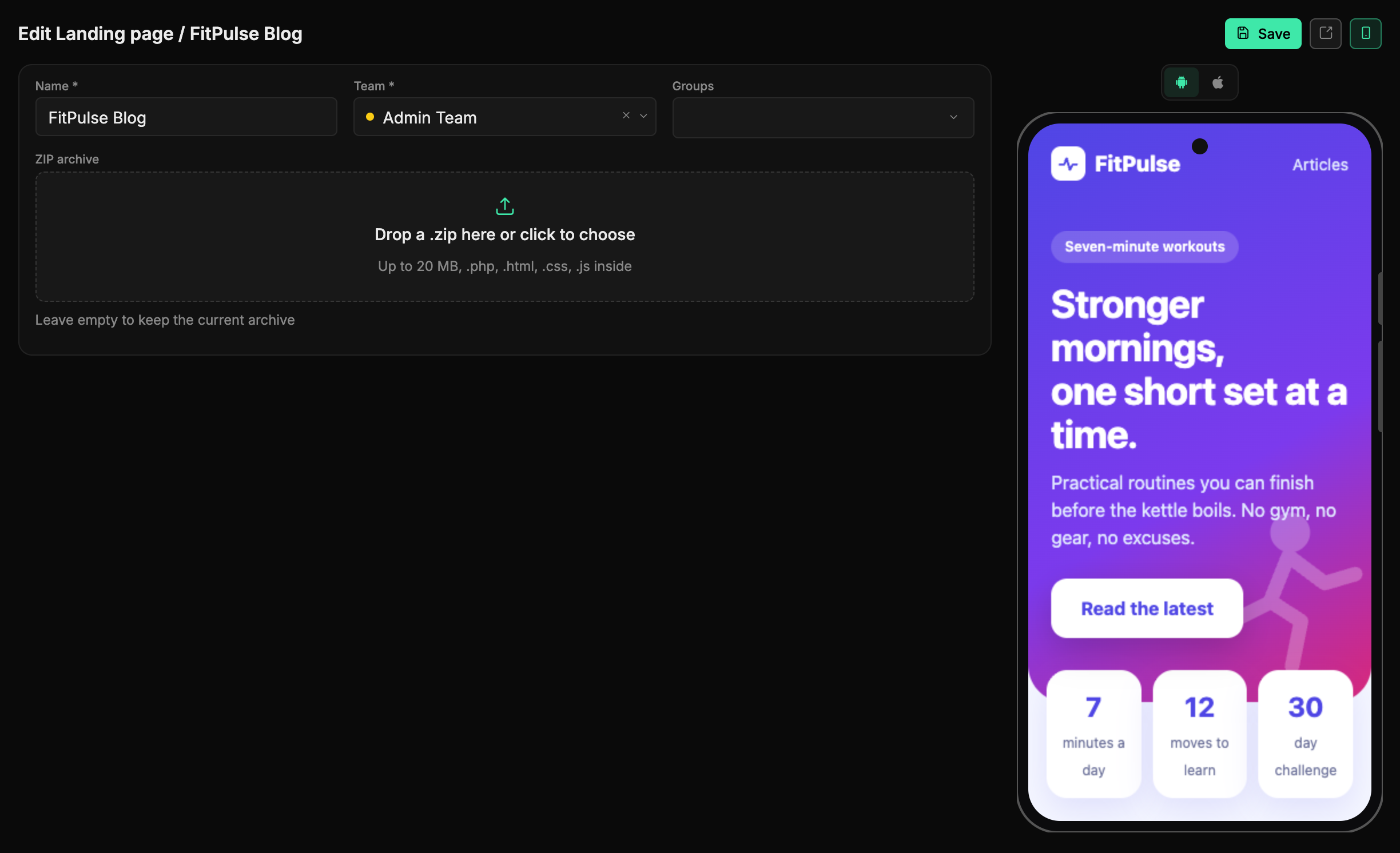
- Drag the ZIP archive onto the ZIP archive field, or click it and pick the file. The archive's name and size appear under the field, the trash button (Delete) removes it. Click Create.
After saving, the landing's page opens and the list updates right away - the landing is ready to attach.
What you can upload
Upload a single ZIP archive with the page files. Besides .php, .html, .htm, .css and .js, it may contain images (.png, .jpg, .jpeg, .gif, .webp, .svg), fonts (.woff, .woff2, .ttf, .eot), as well as .json, .xml, .txt, .map, .mp3, .mp4 and .pdf; files of other types are rejected. The maximum archive size is 20 MB: the panel refuses a bigger archive before uploading it.
The root of the archive must contain an index.php or index.html file - that is what opens as the page. If you pack the files into a nested folder, the archive check fails and the landing won't be saved.
Paths inside the archive
Link styles, scripts and images with relative paths - css/style.css, img/logo.png. Then they load both in the preview and on the PWA's white page.
Preview, edit, or archive
Each row has an action menu (the three-dot icon in the Actions column). Clicking the row itself opens nothing - only the menu items do:
- Open - opens the uploaded page in a new tab. Every landing has a permanent address, so you can keep the link and check the page before attaching it to a live PWA.
- Edit - opens the landing's page: change the name, team, groups, or upload a new archive in place of the current one. Leave the archive field empty to keep the current archive. This way you update the page without creating a new record - every PWA that uses it picks up the fresh version.
- Archive - remove the landing from the list. The action asks for confirmation first.
On the right of the landing's page is a phone preview: how the page looks on a mobile. The switch above the phone toggles Android and iOS, the phone button in the header hides and shows the preview, and the arrow button next to Save opens the landing in a new tab. The preview and that button are only there for a saved landing.
If you leave the page with unsaved changes, the panel asks whether to discard them.
Archiving deletes the landing page permanently
Despite its name, Archive, once confirmed, deletes the landing page together with all of its files with no way to restore it - neither the record nor the uploaded files remain. Before deleting, make sure the page isn't selected in any of your PWAs.
Above the table there is a search (filters the list by name as you type) and a list reload button. If nothing is found, the table shows No Landing pages found - meaning there's no matching page yet, or the search query is too narrow.
Attach a landing page to a PWA
An uploaded landing page shows nothing on its own - you need to select it in the application settings. This is done in the PWA form, on the General tab, in the Landing page type field.
This field decides exactly what the PWA will serve as the white page:
- Load Landing page - show one of your uploaded pages. A Landing page field will appear, where you select the specific record from this section. The arrow button next to it (Open) opens the picked landing in a new tab - handy for checking the page before you save the PWA.
- Landing page redirect URL - instead of a page, redirect to an external address (a Landing page URL field appears for the link).
- Off Landing page - don't show a white page at all.
- Blank page - serve an empty page.
Quick workflow
- Here, in the Landing pages section, click Add and upload the ZIP with the page.
- Check in the phone preview or with Open that it displays correctly.
- Open the PWA you need → the General tab → Landing page type → Load Landing page, and select it in the Landing page field.
Until a page is uploaded to this section, you won't be able to select it in the PWA settings - so always start here.
The landing list is also available to scripts - see the API section "Landings".