
Cloudflare accounts
The Cloudflares section is where your Cloudflare connections live. Through them PWA Hub creates zones and DNS records and enables proxying for the application domains: connect an account once and after that domains are added in a couple of clicks. What you need to prepare in Cloudflare itself (the API Token, the NS servers, the Full SSL mode) is described in “Domains and Cloudflare” - this page is only about the work in the panel.
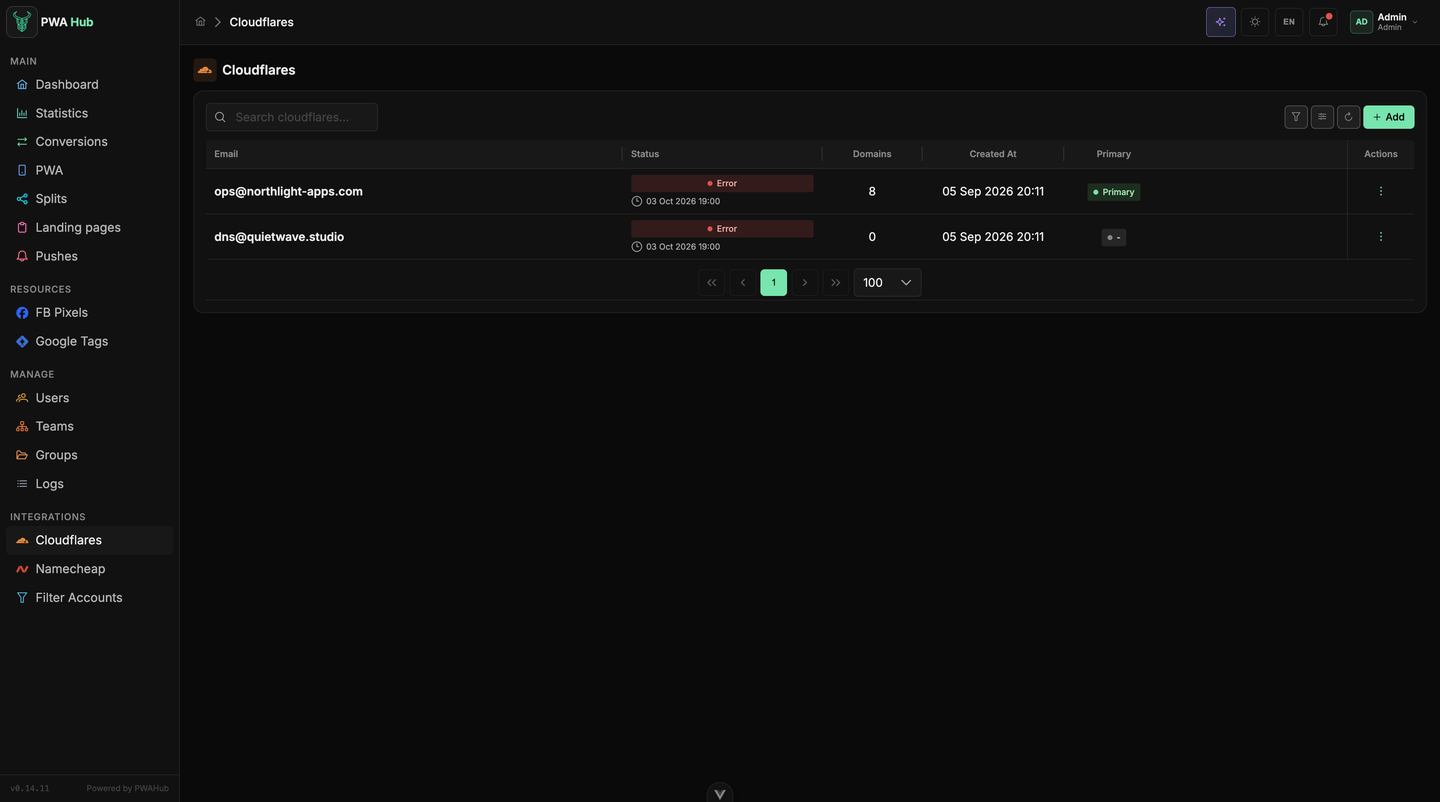
For every account the table shows the email, the health status with the time of the last check, the number of connected domains, the date it was added and the primary-account mark. You can keep as many accounts as you need - for example, to distribute the domains among them instead of piling everything into one. At the top, as in the other lists, sit the search, the filters, the column settings and a refresh (see the "Interface" section).
Adding an account
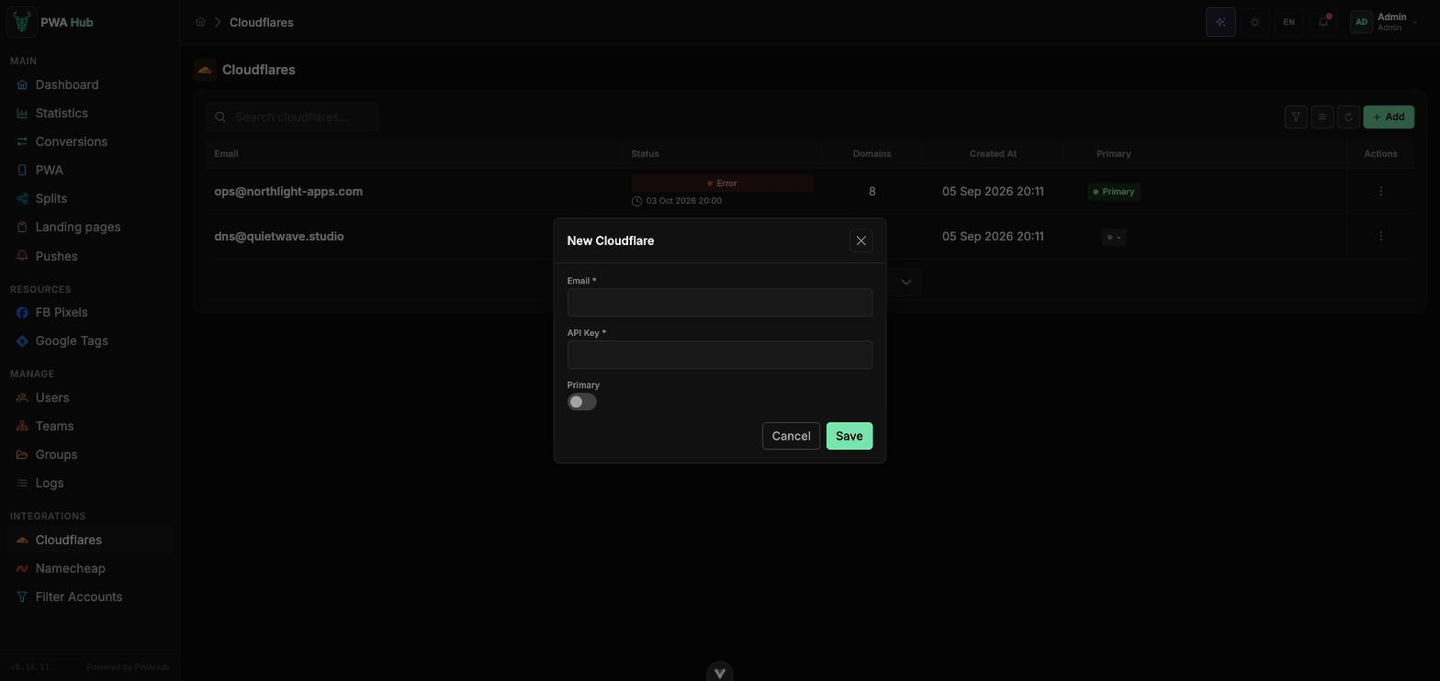
Click Add and fill in just three fields:
- Email - the email of your Cloudflare account.
- API Key - this is where you paste the API Token you created in Cloudflare.
- Primary - make the account primary (Primary).
Primary account
Only one account can be primary. When you connect a domain and don't explicitly choose which account to create the zone on, PWA Hub takes the primary one. You can switch the primary account right in the list - by clicking the label in the Primary column.
If you lose the token
Cloudflare won't show the token value again - you have to re-issue it (Roll) and paste the new value into the API Key field. How to do that is described in “Domains and Cloudflare”.
Checking an account
A Cloudflare account can break quietly: the token gets revoked, it expires, or the zones get deactivated because of complaints. So that you find out before your traffic stops, PWA Hub checks every connected account once an hour on its own and shows the result in the Status column:
- OK - the token works and the zones are being served; the time of the last check is shown under the tag.
- Error - hover over the tag and the tooltip will show the error text from Cloudflare.
- - - the account has never been checked yet (for example, it was just added).
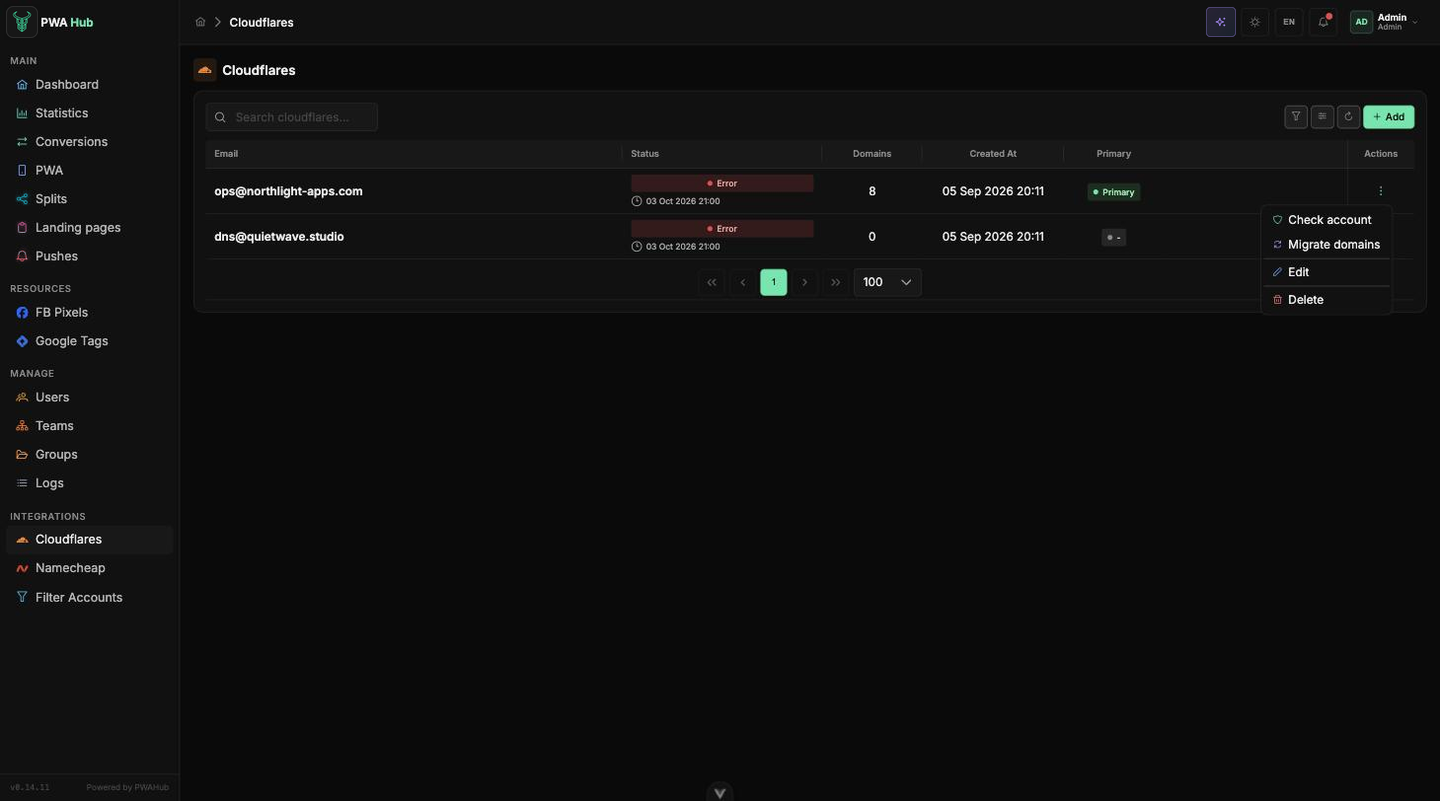
You can check an account right now from the row menu: the ⋮ button in the Actions column → Check account.
The check looks at three things:
- The token - Cloudflare confirms that the token is active and has not been revoked.
- The zones - none of the account's zones may be deactivated: Cloudflare gives a domain the deactivated status when it switches it off on its side. Zones in the pending status (the domain has been added, but the NS servers are not set at the registrar yet) are a normal stage and are not treated as an error.
- DNS - the NS records of one of the active zones are queried: if a zone is considered active but doesn't answer, the account is flagged with an error as well.
A notification instead of manual checks
If an automatic check finds a problem, administrators get a notification in the bell - Cloudflare account issue with the error text. For one and the same account it arrives no more than once a day, and clicking it opens the Cloudflares section.
Migrating domains to another account
This is the rescue operation for when a Cloudflare account can no longer be used: it got banned, its zones were deactivated - or you simply decided to spread your domains across several accounts. By hand this would mean creating a zone in the new account for every domain, recreating the records, enabling proxying, and changing the NS at the registrar. PWA Hub does all of that in a single operation.
Open the row menu of the account you're migrating from and choose Migrate domains. In the window, pick the Target account - the account the domains are moving to - and click Start migration.
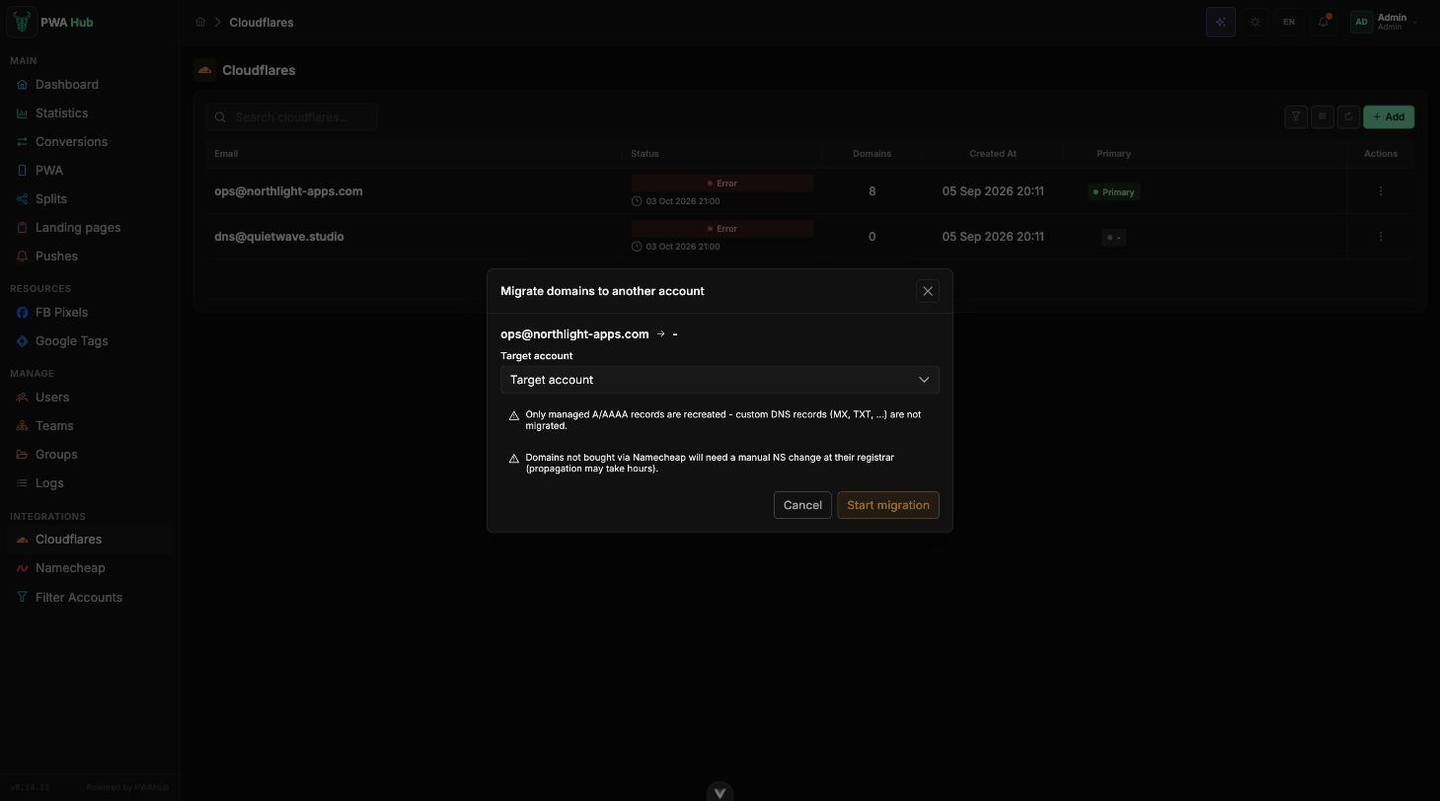
The window warns you about two things right away, and they're worth reading before you start:
- Only the records PWA Hub manages are migrated - A and AAAA pointing at your server's IP. Anything you added to the zone yourself (MX for mail, TXT for verifications, and so on) is not copied: save such records in advance and recreate them in the new zone manually.
- NS at the registrar. Domains bought through Namecheap in the panel are switched by PWA Hub itself. For the rest you'll get a list of NS in the report and set it at your registrar.
What happens after Start migration
The work runs on the server: domains are grouped into zones (a second-level domain and all its subdomains make up one zone), and the zones are processed in the background. The progress is visible in the same window.
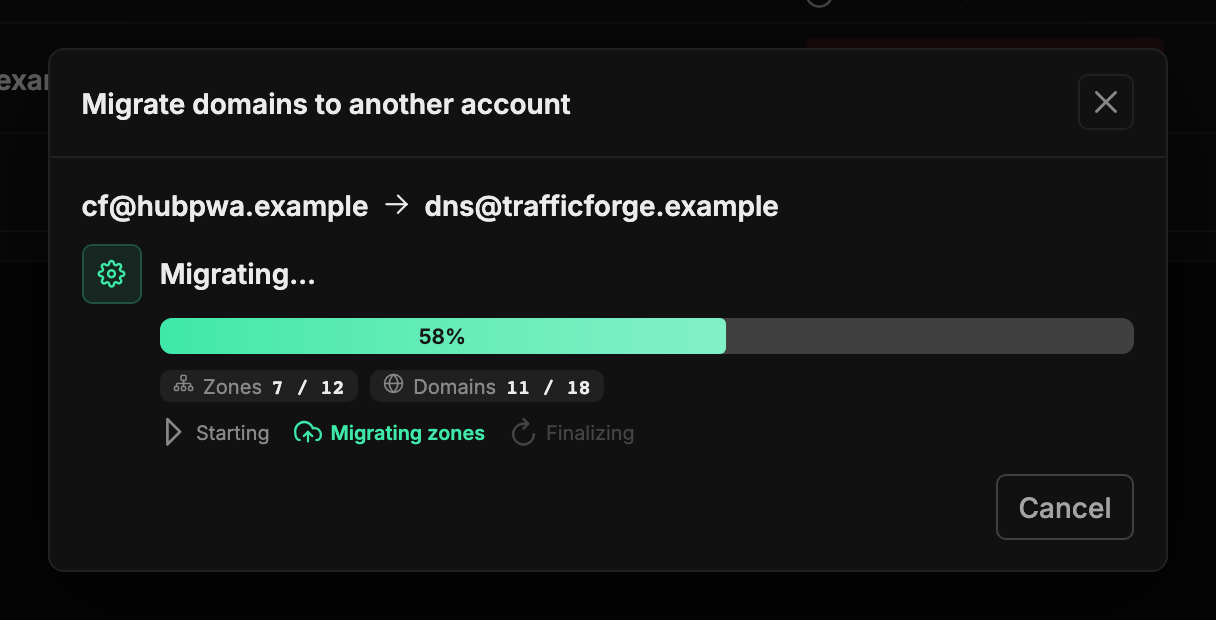
Three steps under the progress bar:
- Starting - the target account is checked and the list of zones is compiled. If the target account's token doesn't work, the migration won't start at all - you'll see an error.
- Migrating zones - the main work. For every zone: a zone is created in the target account (if it isn't there yet), A/AAAA records for your server's IP and the subdomain records are added to it - all proxied; the domain is switched over to the new account; the new zone's NS are set at the registrar (automatically for Namecheap); the old zone is deleted from the source account.
- Finalizing - the PWAs that were bound to the old account are re-bound to the new one, their configurations are rebuilt, and the domain map is updated.
The counters next to it: Zones - how many zones have been processed, Domains - how many domains already belong to the new account.
You can close the window
The migration runs on the server, not in the browser. Close the window, get on with your business, and come back later: open Migrate domains again and you'll see the current progress or the finished report. When everything is done, administrators get a notification in the bell - CF migration with the number of migrated and failed zones.
The report and what to do next
A finished migration shows the status (Migration Completed or Migration Failed), the counters of migrated zones and domains, and two blocks - what to finish by hand and what failed.
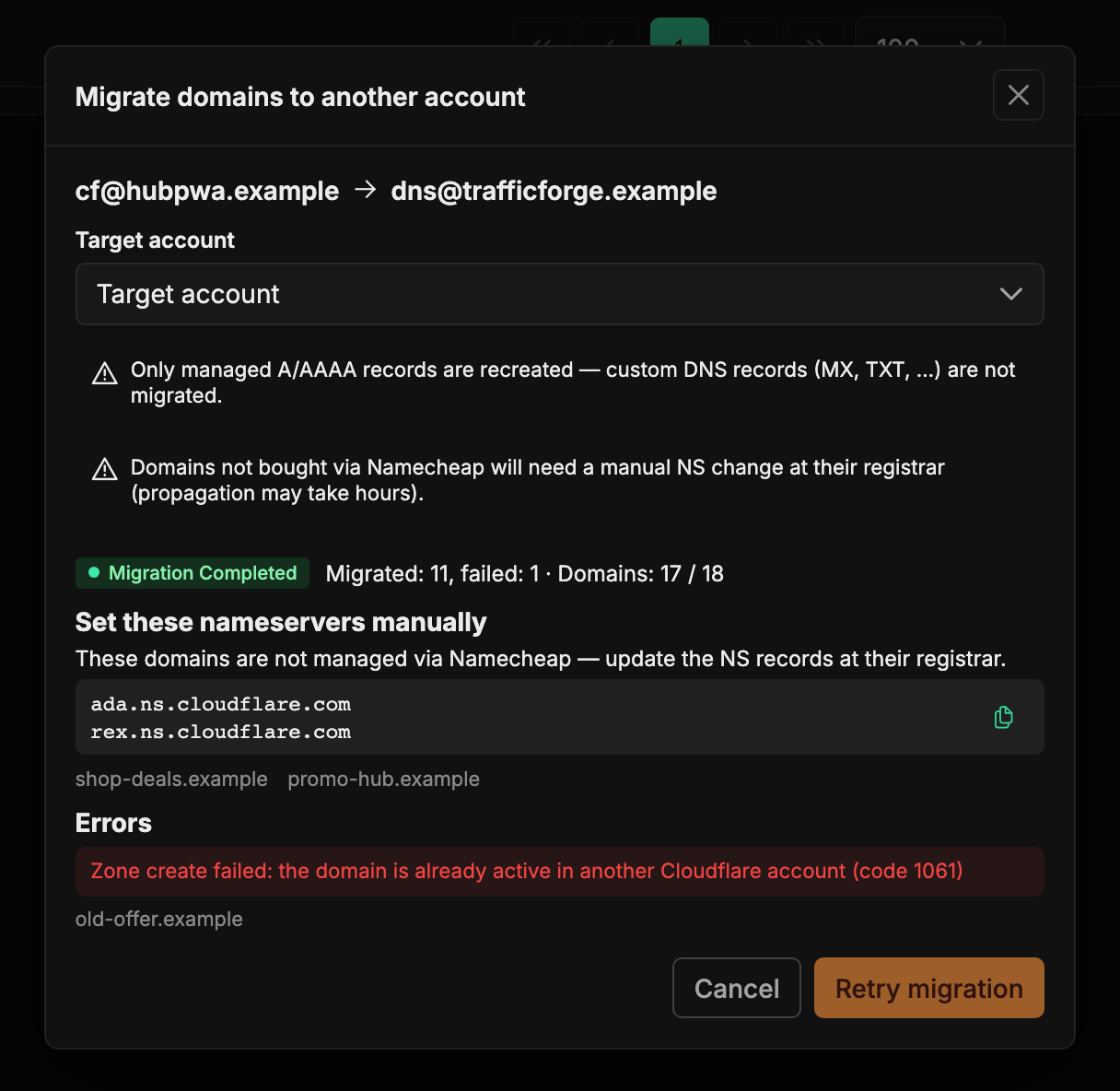
- Set these nameservers manually - the domains whose NS you have to change yourself: they weren't bought through Namecheap, or switching them automatically didn't work out. Copy the NS pair with the button on the right and set it at the registrar for the domains listed under it.
- Errors - the errors grouped by text and the domains they hit. A common reason is that the domain is already active in another Cloudflare account.
- Retry migration - a repeat run. Only the remainder is processed: the domains that already moved are not touched a second time.
Until the NS are updated, the domain doesn't answer
The old zone is deleted right after the transfer, so the domains from the Set these nameservers manually list stay without DNS until the registrar applies the new NS. Usually that's minutes, but by the rules it can take several hours - change the NS right after the migration.
Don't forget the primary account
Migrating domains doesn't move the Primary label. If you moved off the primary account, make the target one primary - click the label in the Primary column, otherwise new domains will start being created on the old account again.
What to know in advance
- The target account must pass the check: with a dead token the migration won't start.
- A deleted account can't be chosen as the target - it won't be in the list.
- Only one migration at a time runs from a single account.
- The server's IP doesn't change: the applications keep working, only the account that serves their DNS changes.
- The report is kept for a week - you can come back and copy the NS list out of it.
If the process stops responding
The window may show a warning that the background worker is not responding (The worker is not responding). Usually that means the task queue on the server has stalled: after it is restarted, the migration continues from where it stopped - the domains that already moved are not processed again.
What happens when you connect a domain
You bind the domains themselves not here but to an application - on the Domains tab of the PWA card or in the domains block of a split (see “PWA and Split Domains”). The Cloudflare account works behind the scenes at that moment: PWA Hub creates the zone (if it didn't exist yet), adds an A record for your server's IP (and AAAA for IPv6, if there is one), and a separate record for the subdomain. All records are created as proxied - the orange cloud is enabled for you.
Root domain records are only created with a new zone
PWA Hub adds the @ records (A and AAAA) automatically only when it creates the zone itself. If the domain's zone already exists in your Cloudflare account - which it will if you added the domain to Cloudflare to obtain the NS servers - no records are created for the root domain (including on recreate DNS). In that case, add an A record named @ for the server's IP manually, just like the one for the panel domain.
How this relates to the other sections
Cloudflare is responsible for DNS and proxying, Namecheap - for buying and renewing the domains themselves (see “Namecheap Accounts”), and binding addresses to applications lives in the “PWA apps” section. What to prepare before the installation is in “Domains and Cloudflare”.