
Offer links
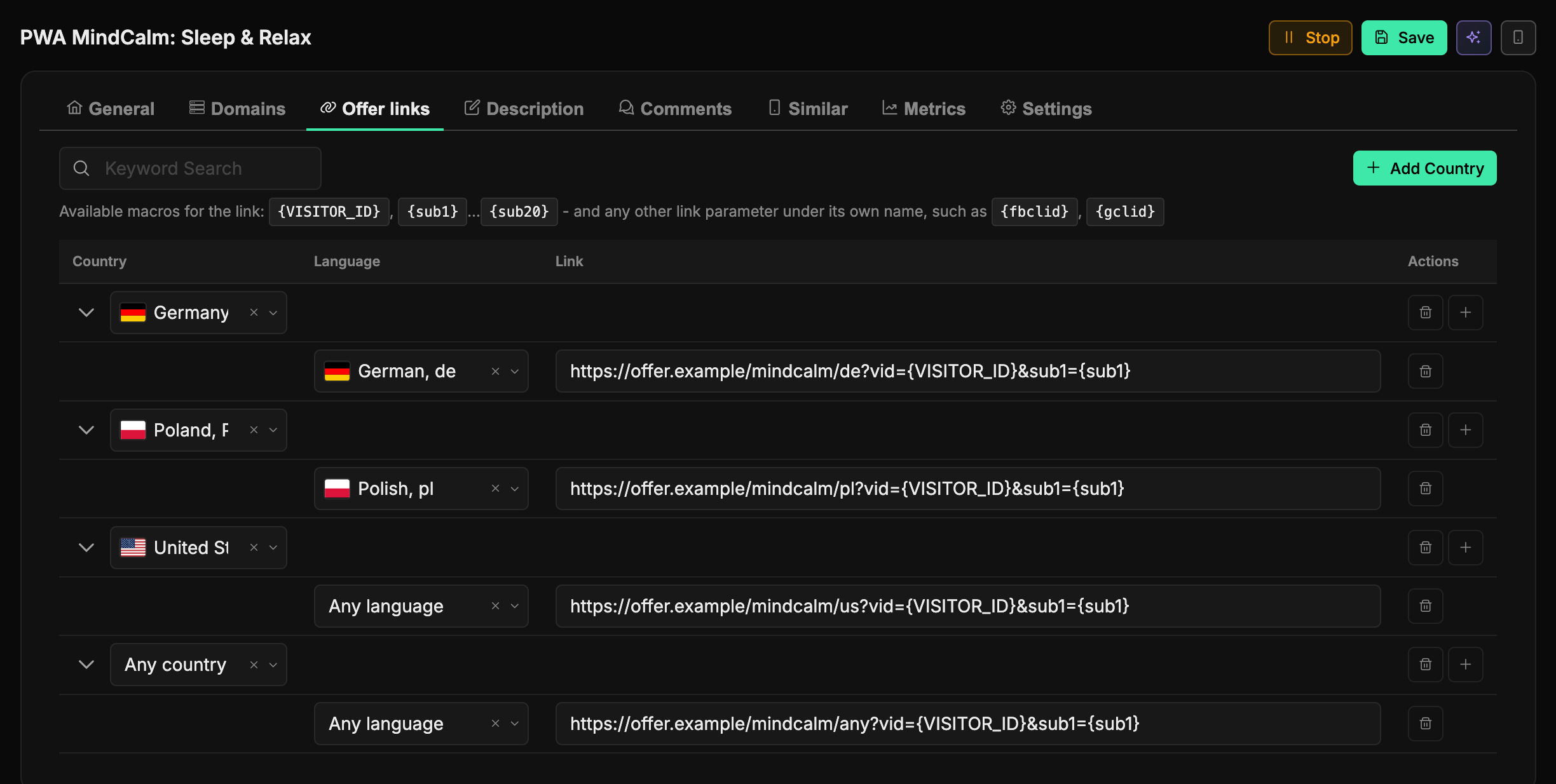
The Offer links tab in the PWA form solves one task: where to send the user after they install the app - which offer, storefront, or affiliate page. And for each country and language you can set your own link, so that a German lands on a German offer, a French user on a French one, and everyone else on a shared address.
What it gives you
The same PWA can be run across different geos while still leading people to a relevant offer. On the first visit and after the install, the app automatically picks a link based on the person's country and language:
- first it finds the block for the required country;
- within that country it takes the link for the user's language, and if there is none - the Any language row;
- if the country isn't in the table or has no matching link - it takes the Any country block by the same rules.
This way you fine-tune routes for each geo, and Any language and Any country safeguard against the case where the user's language or country doesn't match any of the rows.
How it works
The table is a two-level tree:
- Country - a top-level row. Expanded via the arrow on the left.
- Language + link - nested rows inside a country. Each language has its own link.
Expand a country to see and edit its links. Within a single country you can keep as many links as you like - one per language plus, if desired, a fallback Any language.
Quick scenario: set up an offer per geo
- Click Add Country in the table header and select a country (start typing the name - the list will filter) or Any country - the first item in the list.
- On that country's row, click the plus (Add Link) - a nested row appears.
- Select a language (or leave Any language) and paste the full offer address including
https://. - Need several languages in one country - click the plus again and add more rows.
- Repeat for the other countries.
Fallback link for a country
If you don't want to split a country by language - leave a single Any language row. This guarantees that a user from that country always gets a link, whatever their language may be.
Fallback offer for all countries
The Any country block goes to visitors from countries that aren't in the table, visitors whose country couldn't be detected, and those whose language has no link in their country. Add an Any language row to it - and every visitor gets an offer.
Passing parameters to the offer
Visit data flows into the offer link automatically - you don't need to write it in by hand. All the parameters the visitor arrived at the PWA with (for example, your sub tags) are appended to the link on redirect. And if you need to insert a value into a specific spot in the address, use macros in curly braces - the list is shown right in the table header, in the Available macros for the link hint:
{VISITOR_ID}- the visitor's unique identifier; it's handy to pass as a click id for postbacks;{sub1}…{sub20}- the values of the sub tags the visitor arrived at the PWA with (the tags themselves are covered in the Statistics section);- any other link parameter under its own name -
{fbclid}from Facebook or{gclid}from Google Ads, for instance: whatever came in the visit's address is what gets substituted.
A macro is replaced with the value of the matching visit parameter; unrecognized macros are left in the link as is.
Deletion
- Trash icon on a country row - deletes the entire country at once, along with all its links.
- Trash icon on a nested row - removes just one link, the country itself stays.
What's important to remember
Only filled-in rows are saved
Only rows where both the language and the link are set make it into the app. Empty or half-filled rows are simply ignored - make sure that both fields are in place for every link you need.
No country - no offer
If no link is found for the visitor either in their country or in the Any country block, the PWA isn't shown to them: they see the white page right away, like a bot. Keep an Any country block with an Any language row so this traffic isn't lost.
If you remove a link from a PWA that is already installed, the user sees an "Offer not found" page when opening the app. Before removing a country, cover its traffic with Any country.
Countries in the Adspect stream and TrafficArmor campaign
If the selected Adspect stream or TrafficArmor campaign has a list of allowed or blocked countries, the service lets only matching countries through to the PWA and sends everyone else to the white page. The Offer links tab warns you about it: a banner above the table shows the service icon and lists the countries it won't let through, and each such country gets a ⚠ icon. If the table has an Any country block, the banner reminds you that only the countries let through will reach it.
The panel only reads the stream or campaign and never changes it: the countries are edited in the service itself (the link in the banner leads there), and the tab picks up the change within 5 minutes. Choosing the stream is covered in the "PWA - creating" section.
A PWA without links won't save
A PWA is saved only with at least one link. And if Off Landing page is selected in Landing page type on the General tab, an Any country block is required too: there is no white page, so visitors from any country reach the PWA. Without it the form shows an error and doesn't save.
There's no separate save button on the tab
Everything is saved together with the PWA via the form's shared save button - see the "PWA - creating" section.
A couple of habits that save time: specify addresses in full, with https://, and don't bloat the list - add only those countries and languages that actually receive traffic. That keeps the settings readable and the routes predictable.