
Filter Accounts
Filter Accounts are connections to an external service that separates real people from bots. The idea is simple: a real person sees your app (PWA), while a bot sees a white page. This way, raw traffic and bots never reach the offer itself. You connect the service once in the INTEGRATIONS → Filter Accounts section, and then select it in the PWA form on the General tab in the Filter Account field.
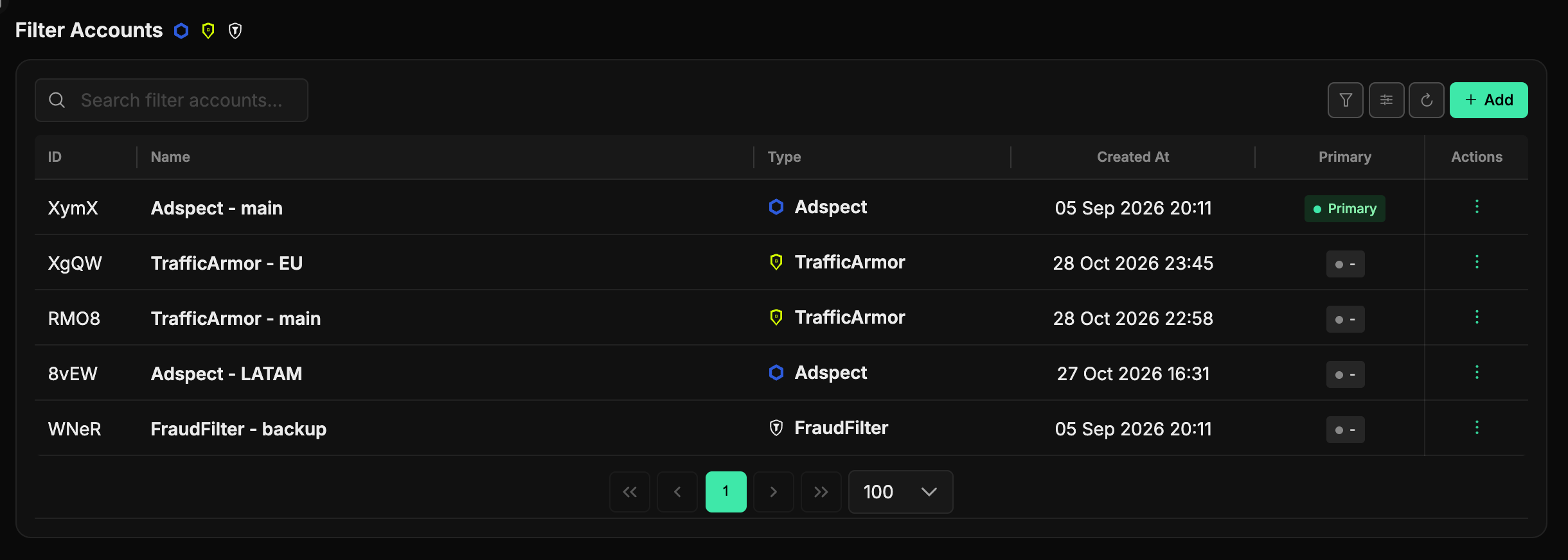
How the list is organized
The section opens with a table of connected accounts. At the top is a search field, and on the right is the green Add button. Table columns:
- ID - the account's internal number.
- Name - the name you gave the account.
- Type - the type of filtering service.
- Created At - the date it was added.
- Primary - the primary account marker.
- Actions - the "⋮" menu for each row: edit or delete.
The list is paginated - 100 records per page.
Primary account
Only one account can be the Primary one - the system uses it by default when no filter account is explicitly selected for a specific PWA. You can switch the primary account right in the list by clicking the marker in the Primary column.
The primary account is protected from being turned off by accident: you cannot delete it via Actions - first make another account primary. Likewise, you cannot uncheck the Primary marker on the only primary account - there must always be at least one primary account in the system.
Adding an account
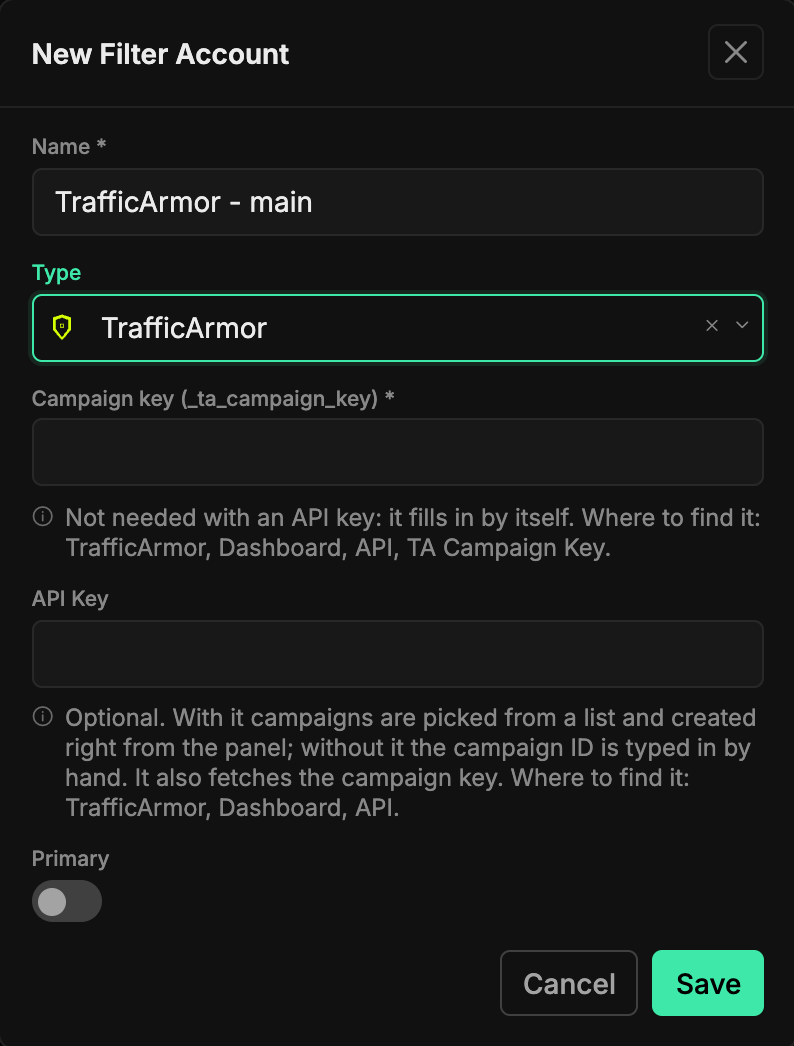
The Add button opens the New Filter Account window. Fill in the fields:
- Name - a clear name so you can recognize the account in the list and in the PWA form.
- Type - the filtering service: Adspect, TrafficArmor or FraudFilter (see below).
- Service keys - the set of fields depends on the type, and each field has a hint on where to get the value.
- Primary - a toggle: make this account the primary one.
At the bottom of the window are Cancel and Save. Click Save to save the account. If the service rejects the key, the panel highlights the field with the error.
Service type
Each PWA has its own rules in the filtering service: in Adspect it's a stream (Stream), in TrafficArmor and FraudFilter - a campaign (Campaign). The account is connected once, and the stream or campaign is chosen in the PWA form, next to the filter account. One account serves many PWAs, each with its own rules.
Adspect
adspect.ai. The API Key field is optional:
- with a key - in the PWA form streams are picked from a list, and the + button creates a new stream configured for the app;
- without a key - the stream ID is entered manually; you can see it in your Adspect account.
TrafficArmor
Fields:
- API Key - optional. With it, campaigns are picked from a list and created with the + button right from the PWA form, and the panel fills in the campaign key itself. Where to get it: TrafficArmor → Dashboard → API.
- Campaign key (_ta_campaign_key) - required only if no API Key is set. Where to get it: TrafficArmor → Dashboard → API → TA Campaign Key.
Without an API Key, the campaign ID is entered manually in the PWA form.
TrafficArmor campaign settings
A campaign created with the + button is already set up correctly. If you create a campaign in your TrafficArmor account yourself, turn off Hybrid Mode and JavaScript tests in it: the visitor is checked from the server, and with them on the filter won't work.
FraudFilter
The only field is Token (X-FF-JS-TOKEN), and it's required. Where to get it: your campaign in FraudFilter → Integration → Process clicks → the API tab.
FraudFilter campaigns are created only in their own dashboard, and the campaign ID is entered manually in the PWA form.
Opening the stream or campaign in the service
For Adspect, and for TrafficArmor with an API Key, the PWA form has a button next to the selected stream or campaign that opens it in the service's dashboard: that's where countries and filtering rules are edited.
Where to select the account later
The saved account appears in the PWA form on the General tab in the Filter Account field. For more about the app form itself, see the "PWA Applications" section. General preparation for getting started is covered in the "Requirements and Preparation" section.
Without a filter, everything is treated as a bot
The system works on a fail-closed principle: if no filter account is configured for a PWA, the service key is wrong or the service didn't respond, all visitors are treated as bots and see a white page. This is protection, not an error - it keeps raw traffic from reaching the offer until filtering is connected and verified. So set up your filter account in advance, before you launch traffic.