
Access groups
By default access to resources is defined by role and team: a customer sees only what they created, a team lead - everything in their teams, an administrator - everything. Groups add targeted exceptions on top: you gather a set of apps (or landings, pixels, tags) and open it to specific people - including from another team. Neither the role nor the team membership has to change.
When you need it
- A buyer from another team should run one of your apps - share a group with that PWA.
- Several customers of one team work on a shared set of apps without seeing the rest.
- A pixel or a tag of an ad account has to be available to several people.
How access works
- A customer sees their own resources plus everything in the groups shared with them.
- A team lead sees the resources of their teams plus the groups shared with them - even when the group belongs to another team.
- An administrator sees everything and manages the groups themselves.
- Whoever a group is shared with gets full access to its resources: editing, starting and stopping, cloning - as with their own.
- Domains are not limited by groups: they are shared across the whole team for every role.
A group is tied to one team and one resource type - PWA, Landing, FB Pixel or Google Tag. The name is unique within the team and type, and neither the type nor the team can be changed after creation - create a new group instead.
Creating a group
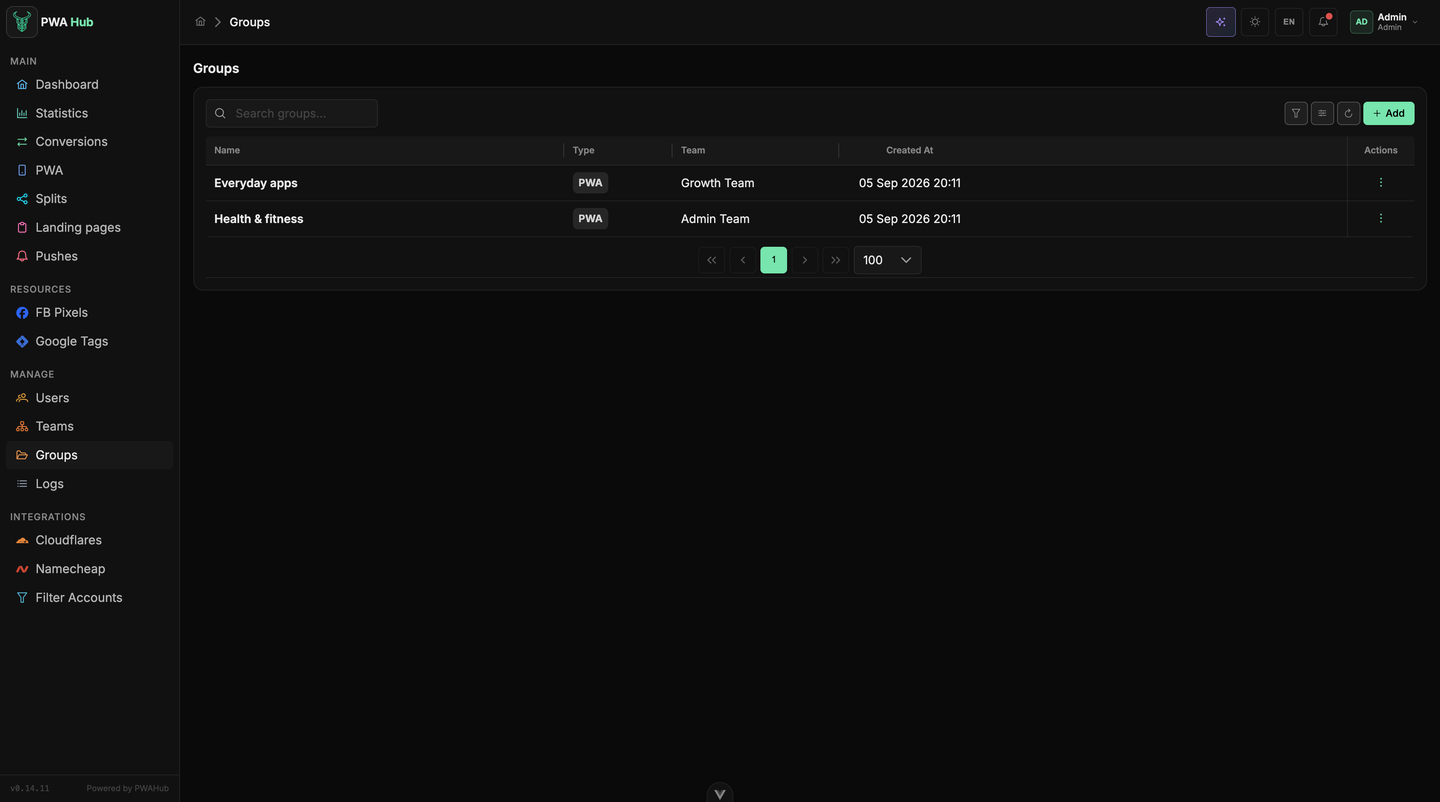
Groups are created by an administrator in MANAGE → Groups. The table shows the type, the team and the number of users and resources in each group.
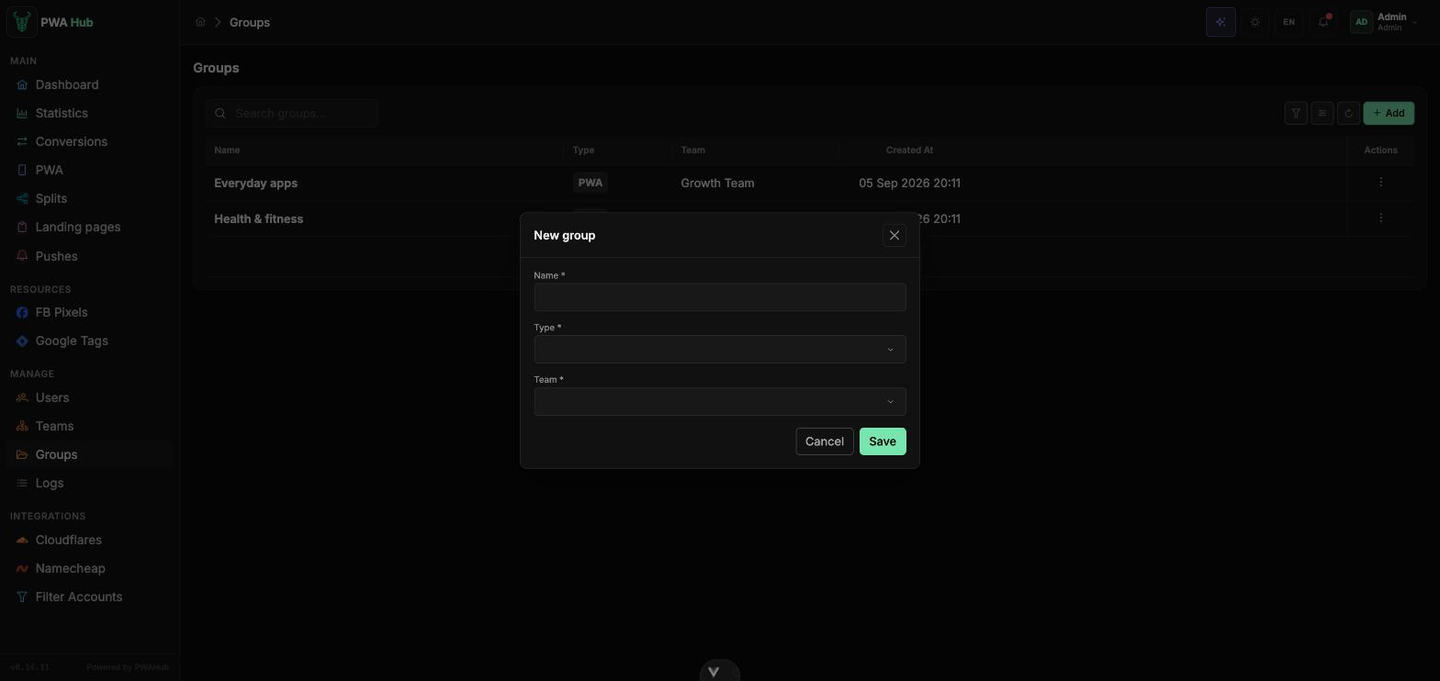
Click Add and fill in the New group window: Name, Type and Team. Save creates an empty group - people and resources are added in the next two steps.
Who to share it with
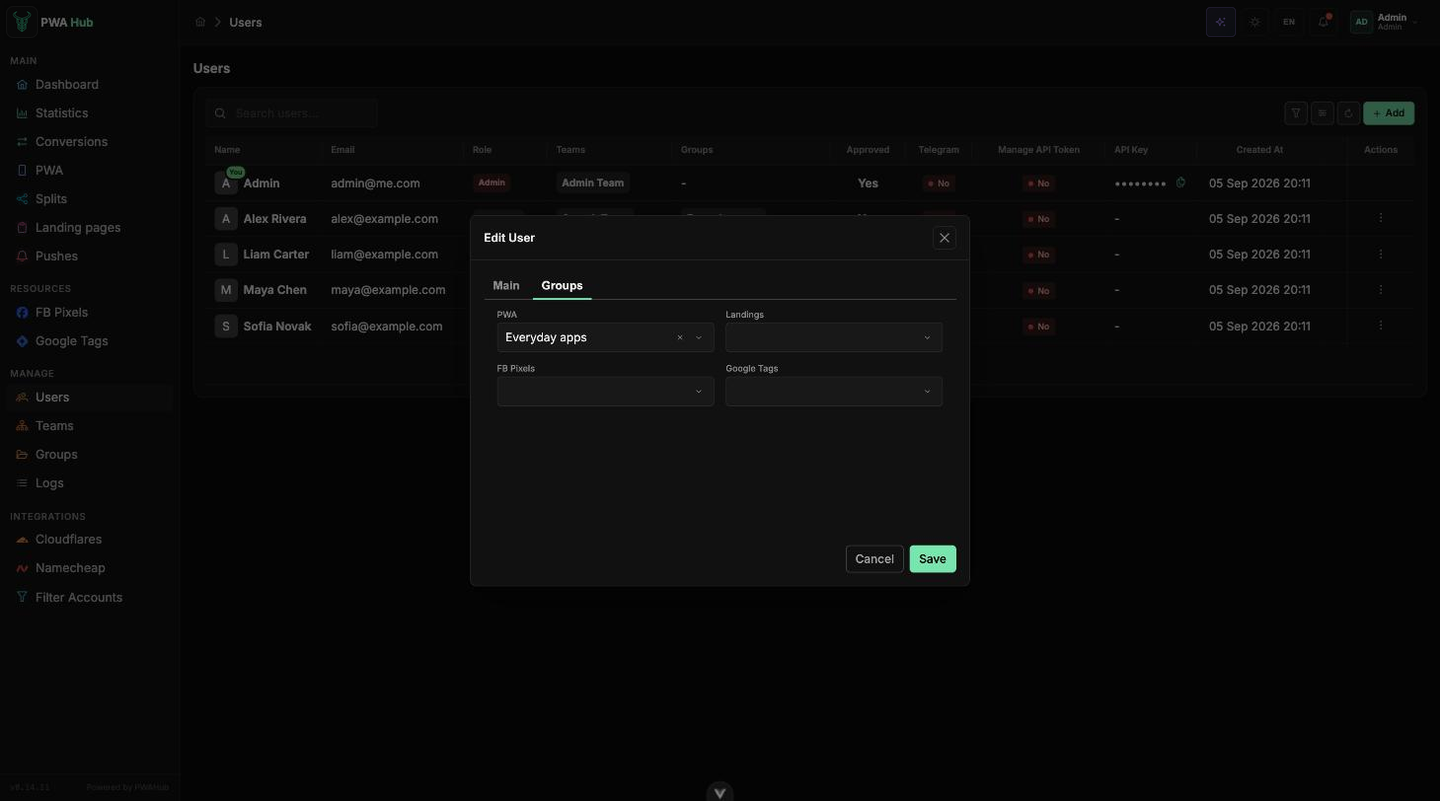
Access is granted in the user's card: Users → open the user → the Groups tab. There is a separate field for each resource type - tick the groups the person should see and click Save.
Create the user first
For a new user the Groups tab appears after the first save - access can only be granted to an existing account.
What to put into a group
Resources join a group from their own forms: the Groups field is on the General tab of the PWA form and in the landing, pixel and tag windows. Only groups of the same team and type as the resource can be picked; one resource may belong to several groups. Lists show groups in the Groups column, and the PWA list can filter by group.
Deleting a group
Deleting a group (⋮ → Delete) revokes every access granted through it: the resources become private again, and users see only their own. The apps, landings, pixels and tags themselves stay where they are.